
The HELP AND SUPPORT view provides a link to the documentation, and links to get help and support should you encounter any issues in Code for IBM i.
The HELP AND SUPPORT view provides a link to the documentation, and links to get help and support should you encounter any issues in Code for IBM i.
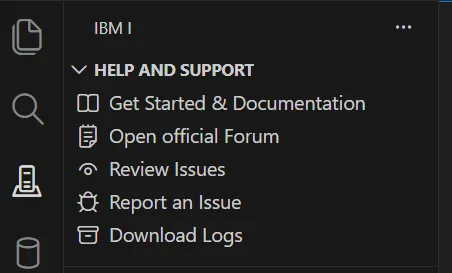
This link opens the documentation for Code for IBM i in your browser, making it easy to go directly from Code for IBM i to the information on how to use it.
This link takes you to the Code for IBM i discussions, where you can ask any question on how to use the product.
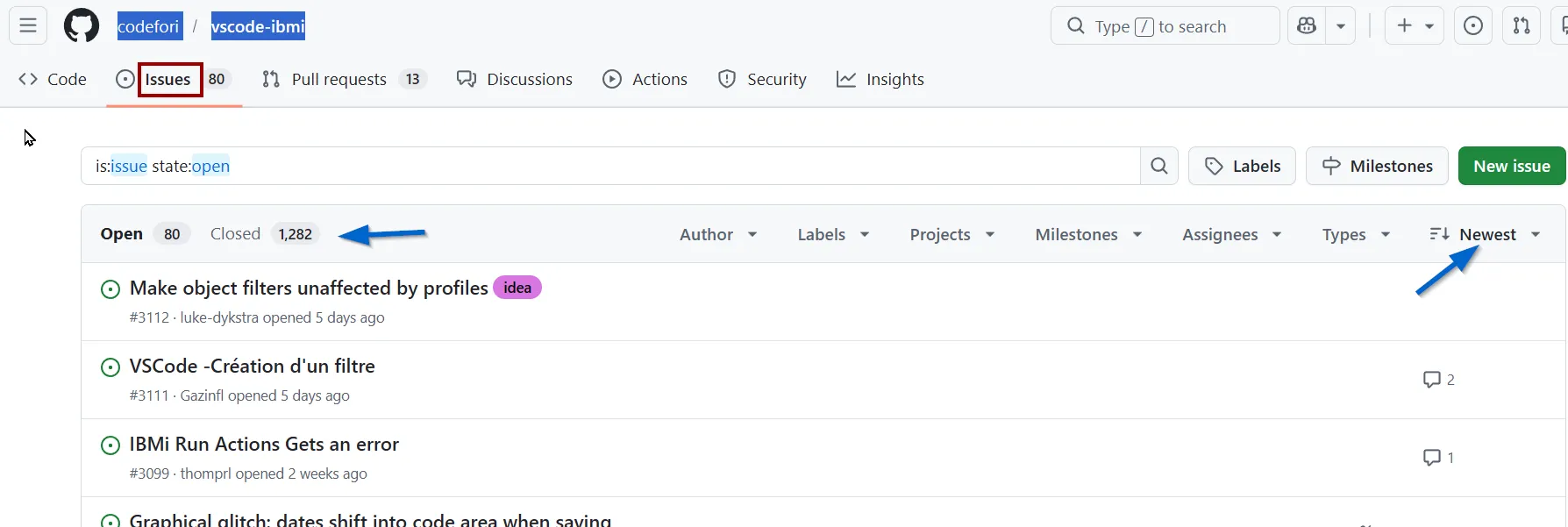
If you have a problem, there is a good chance that your problem has been seen before. A solution or workaround may have been found, or a fix may have been created to solve a similar problem. By reviewing the Issues section in the GitHub repository you may be able to solve your issue.
You can see all open or closed issues reported since the start of the project and sort them by date.
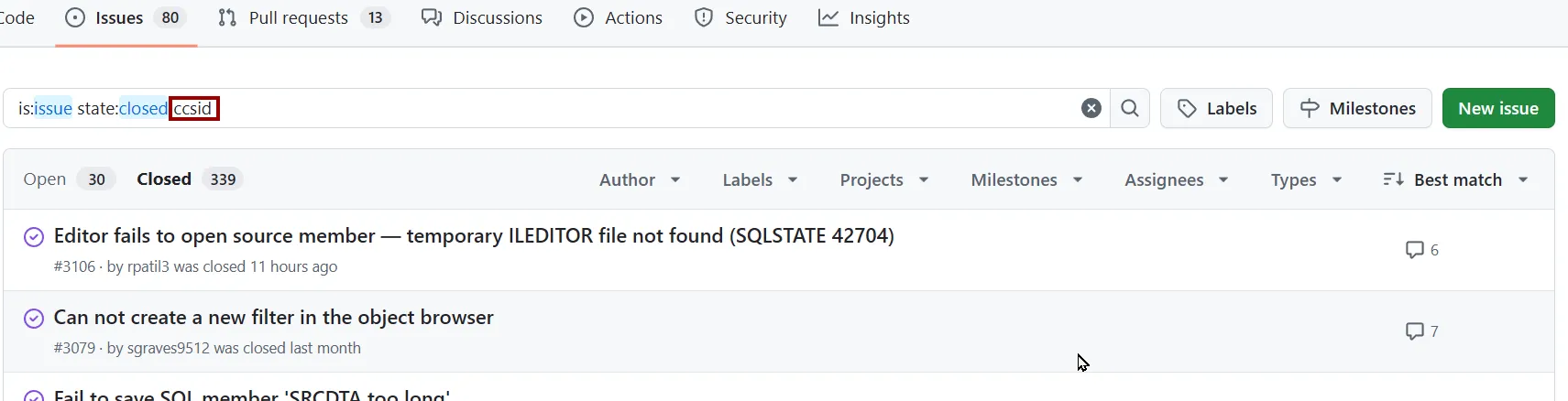
You can also search issues by adding text in the search bar:
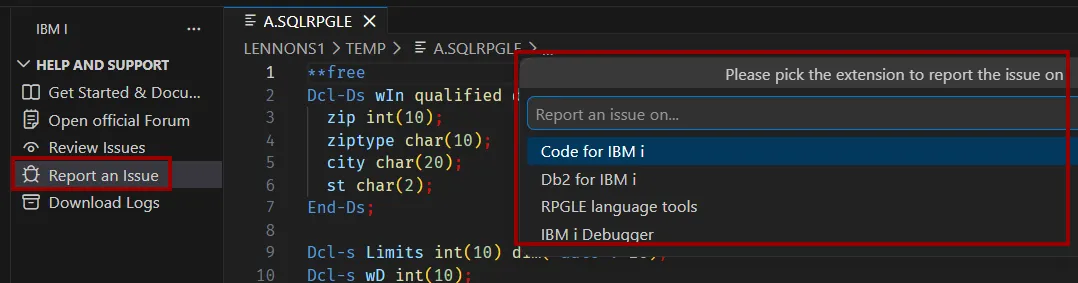
If searching existing issue reports did not give you the solution to your problem, the best way to create a new issue report is by using the Report an Issue link.
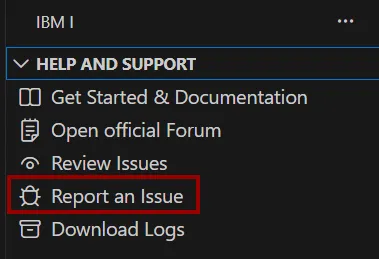 This link collects system information about Code for IBM i, the IBM i server and VS Code.
It then copies this information into a Github issue and opens the issue for you to complete.
To provide the most helpful information for the support staff, follow these steps as far as possible to report an issue:
Report an Issue link and pick the extension on which to report the issue:
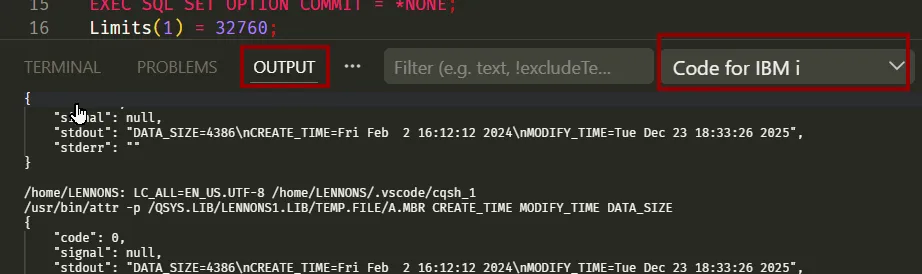
OUTPUT tab and select Code for IBM i. Select the complete displayed contents and then copy and paste into the Github issue.:
Often the support team will ask for the full Code for IBM i log to better understand what’s happened. For this you can use Download Logs.
This will show a pop-up where you can choose which of the following logs you want to download:
Next you will be prompted for a directory in which to save a zip file containing the chosen log files. After the zip file has been downloaded, you get this message:
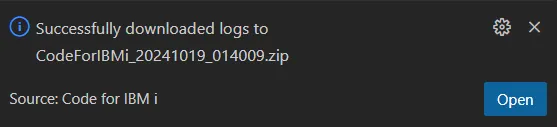
When you click on Open, your file explorer will open with the cursor on the zip file, and you can upload the file to your issue report on Github.