
A Profile allows the user to switch between settings quickly. You could use a profile to quickly change library list and other items specific to a project.
A Profile allows the user to switch between settings quickly. You could use a profile to quickly change library list and other items specific to a project.
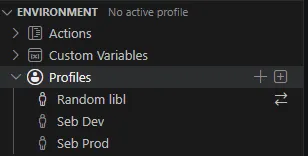
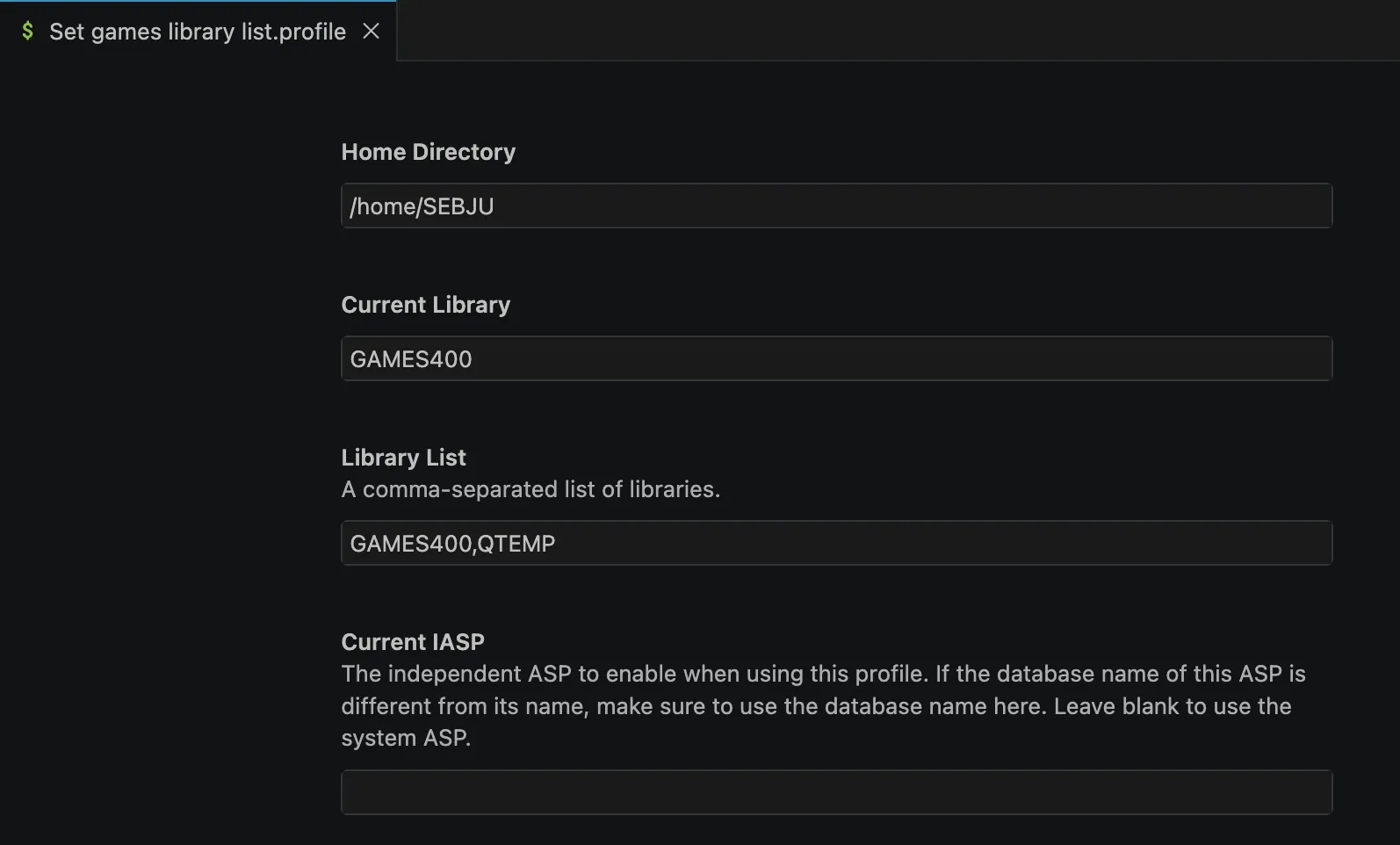
A profile stores the following settings:
You can create a profile using the Profiles node inline actions. You’ll have two options:
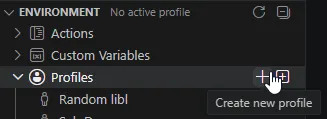

You’ll be asked for the new profile’s name and then the profile editor will open to let you edit/review the profile’s settings.
Click on a profile to open the profile editor and change its settings.
Only the following settings can be changed from the profile editor:
The Object filters, IFS shortcuts and Custom variable can only be changed when the profile is active.
This setting replaces what used to be called Command Profiles before Code for IBM i version 3.x.
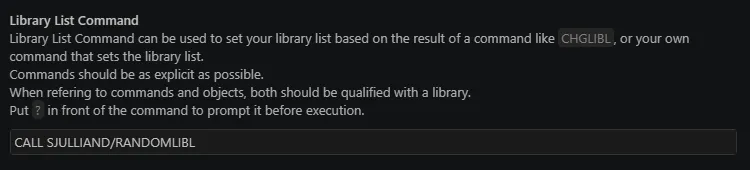
The library list command lets you define a CL command that will be executed when the profile becomes active and set the current library and user library list.
Put ? in front of the command to prompt it before its execution.
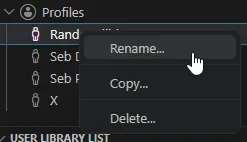
Right click on a profile to get access to the following actions:
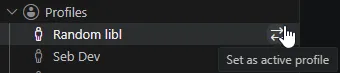
To activate a profile, click on the Set as active profile inline action next to the profile you want to activate.
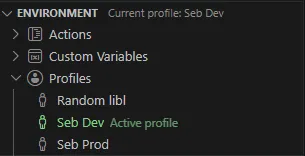
When a profile is active, it is highlighted in green in the Environment view and it’s name is displayed in the view’s title bar.
The current profile name is also shown next to the connection’s name in the bottom status bar.

When a profile with a Library list command becomes active, the profile’s current library and user library list is updated, based on the job’s current library and user library list after the command is executed.
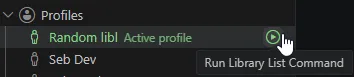
The command can be executed again at any time by clicking on the Run Library List Command profile’s inline action.
You can unload the active profile and go back to your default context by clicking on the Profiles node’s Unload active profile inline action.
