
An action is used to perform a task on a member, streamfile or other type of object. A comprehensive default set of actions is loaded directly from the extension. You can also easily change or add to actions — see below how to manage Actions.
Actions are defined commands used to perform tasks on members, streamfiles and objects. For example, to compile a source member. Actions can be executed from different places:
Object Browser.Actions are managed from the Environment view’s Actions node.
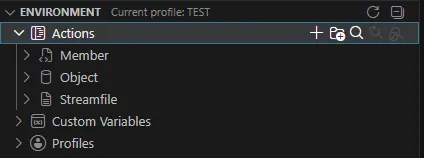
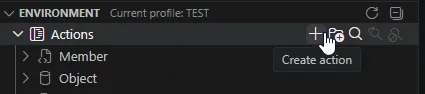
You can create a new Action using one of the two Create action inline action located at the Actions node level, or at the Action type level.
Using Create action at the Actions node level will first prompt for the target type of the action.
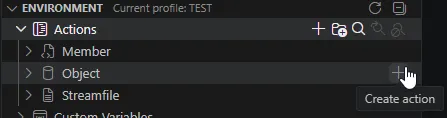
You’ll be prompted to give the name of the new Action and then the Action editor will open to let you fill in the Action details.
Clicking on an Action in the Environment view will open the Action editor to let you change the selected Action’s details.
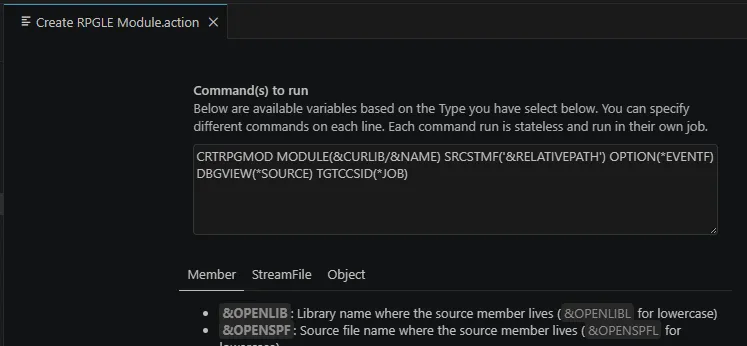
The command(s) that will be executed when the action is run. You can specify different commands on each line.
Notice it has portions of text that start with an & (ampersand) - such text is a “variable” that will be substituted when the action is run. Commands can have different variables based on the Action Type (member, streamfile, object or local file). Note that in addition to the supplied variables, you can create your own variables. See Custom Variables.
If a command string has a leading ?, then the command will be displayed and editable before it gets executed.
Example: ?DSPFD FILE(&LIBRARY/&NAME) OUTPUT(*PRINT)

Rather than using the ?, you can have the Action prompt for values.
The Command(s) to run string can have embedded prompt string(s) to invoke prompting.
A “prompt string” has the format ${NAME|LABEL|[DEFAULTVALUE]} where:
Suppose we have a “Call program, prompt for parms” action with the “Command to run” defined like this:
CALL &LIBRARY/&NAME PARM('${AAA|First name|Your name}' '${xyz|Last Name}')If we run the action it prompts like this:
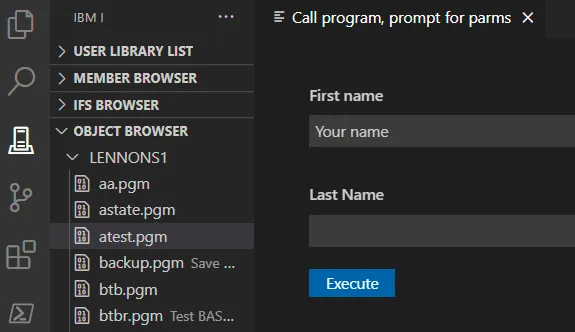
If we complete the screen like this:
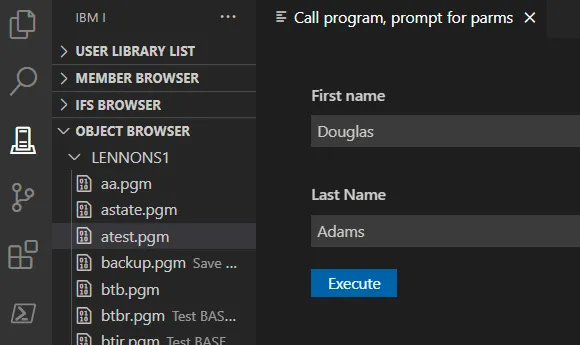
and click Execute a command like this is executed;
CALL LENNONS1/ATEST PARM('Douglas' 'Adams')You can also use variables in the prompt string. If an action is defined like this:
CALL &LIBRARY/&NAME PARM('${AAA|Library|&CURLIB}' '${xyz|Report Name}')&CURLIB will be substituted and the prompt will look like this when executed:
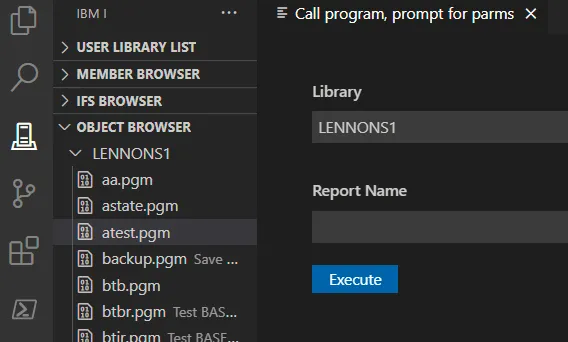
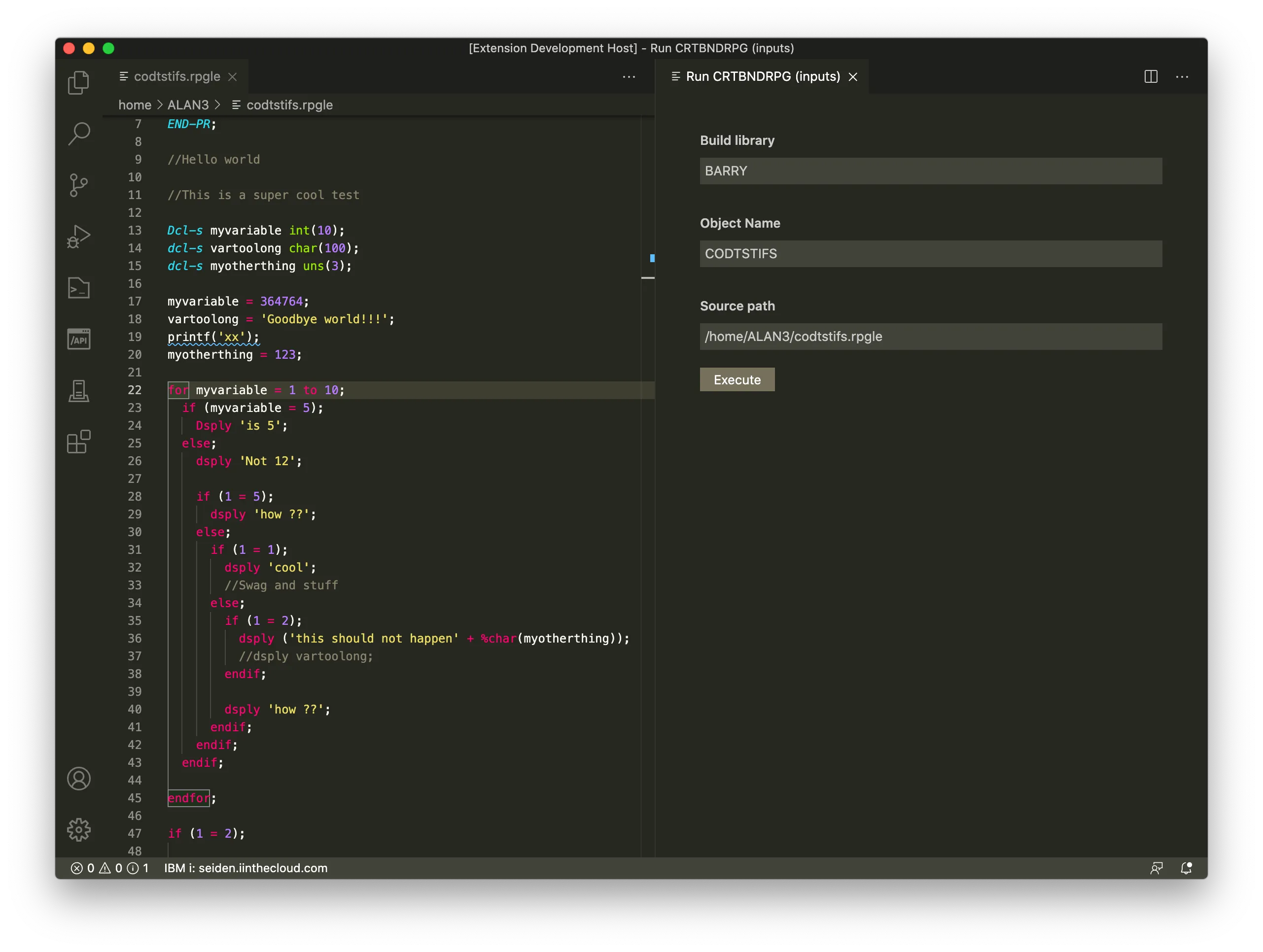
Here’s a more complex example of a “Run CRTBNDRPG (inputs)” action. The ‘Command to run” string is defined like this:
CRTBNDRPG PGM(${buildlib|Build library|&BUILDLIB}/${objectname|Object Name|&NAME}) SRCSTMF('${sourcePath|Source path|&FULLPATH}') OPTION(*EVENTF) DBGVIEW(*SOURCE) TGTRLS(*CURRENT)When executed, it prompts like this:
A comma separated list of extensions allowed to run the action. This can be a member extension, a streamfile extension, an object type or an object attribute
Determines which type of object can run this action. It can be Member, Streamfile or Object. For an Action defined in a local project, the type is always Local File (Workspace) and cannot be changed.
Determines where the command should be run. CL commands needs to run in the ILE environment. For shell commands, you have the option to run them through PASE or QShell.
Determines the Browser level to refresh after the action is done. It can be:
No: no refreshParent: the Action target’s parent container is refreshedFilter: the Action target’s root level filter is refreshedBrowser: the entire browser ir refreshedWhen enabled, the local workspace is deployed before the Action is run.
A comma separated list of remote files or folders to download after the Action is complete. Supports Custom Variables.
When enabled, allows the execution of this Action on protected or read-only targets.
Copy the Action’s output to an IFS file. Custom Variables can be used to define the file’s path; use &i to use a file index incremented each time the action is run.
Example: ~/outputs/&CURLIB_&OPENMBR&i.txt
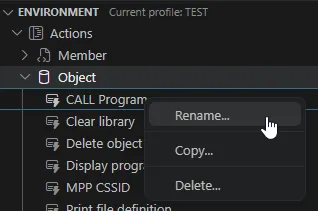
Right click on an Action to get access to the following actions:
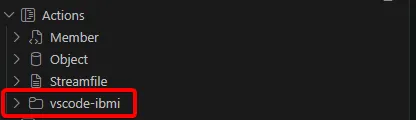
Since Code for IBM i 3.x, Actions defined in a local workspace (i.e. in the .vscode/actions.json local file) can also be edited like member/streamfile/object Actions.
These actions are located under a node named after the local workspace.
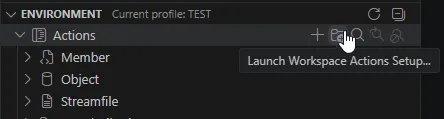
To generate standard Actions in the local workspace, use the Launch Workspace Actions Setup inline action at the Actions node level.
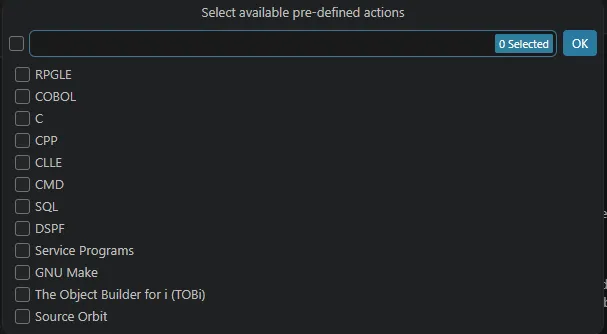
You’ll be asked to choose which category(ies) of Action to generate.
If local Actions are already defined, you’ll be asked to choose between appending new Actions or overwriting the existing ones (for the select category(ies)).
To run an Action, open a source member (or an IFS streamfile) and press the shortcut key:
Or click on the Run Action... action in the editor’s toolbar.

This shows a dropdown of the available Actions for the open file. Use the arrow keys to select which Action to run and hit enter to select it.

Example: to run the CRTBNDRPG Action, you must open a source member with the RPGLE extension. Then, when you use the Run Action action (above), you will see the list of available Actions.
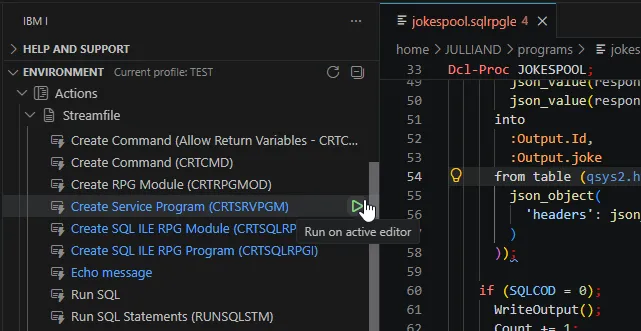
You can also run an Action from the Environment view’s Actions node. Any Action that an be run on the file being edited will be highlighted in blue and the Run on active editor inline action will be activated on each highlighted Action.
The Action execution workflow is the following:
Local File and ‘Deploy before running’ is enabled -> deploy the workspaceCommand(s) to run - depending on the command syntax:
? or no prompting?Copy output to file is enabled: dump the Action output in a streamfilePost execution downloads is not blank: copy the listed files/foldersIf the Action’s Command(s) to run contains *EVENTF (anywhere in the command string), then the remote EVFEVENT file content will be loaded and parsed after the Action is done to populate the Problems view.

To locate the EVFEVENT file to load, Code for IBM i will first look for its path in the Joblog. Any message starting with EVFEVENT: will be parsed to get the file’s path. The expected message text formats are:
EVFEVENT: LIBRARY,OBJECTorEVFEVENT: LIBRARY/OBJECTorEVFEVENT: OBJECTIf no EVFEVENT: message is found in the Action Job log, then Code for i will extract the EVFEVENT file location based on one of these command parameters:
PNLGRP(LIBRARY/OBJECT)OBJ(LIBRARY/OBJECT)PGM(LIBRARY/OBJECT)MODULE(LIBRARY/OBJECT)FILE(LIBRARY/OBJECT)MENU(LIBRARY/OBJECT)Code for i will load the OBJECT member from the LIBRARY/EVFEVENT file (or EVFEVENT file from the library list if LIBRARY is not defined).