If you are doing this workshop as part of a hosted lab, then a user profile and schema with sample data will be provided to you.
If you’re using your own system, ensure that SSH is running on your system. Check out the requirements. You can use qsys.create_sql_sample to create the same sample data.
QSYS/STRTCPSVR SERVER(*SSHD) -> The CL command that starts the Secure Shell (SSH) Daemon server.
Goals
The main goal of this workshop is to understand how you can use Visual Studio Code to make it easier to work with the database while you work on developing applications.
Connecting to a system
Tasks
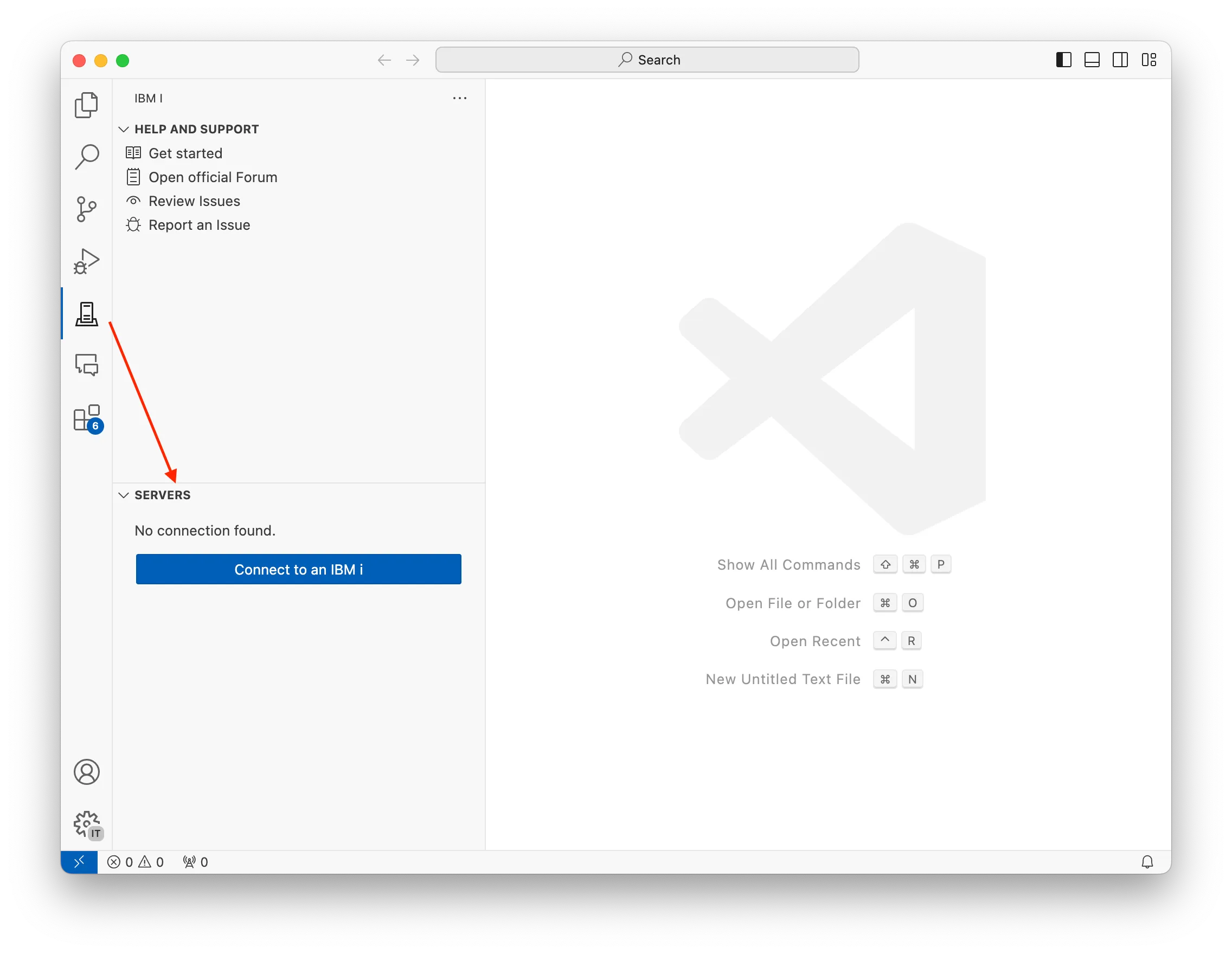
Using the Code for IBM i extension, you can create a new connection to an IBM i system.
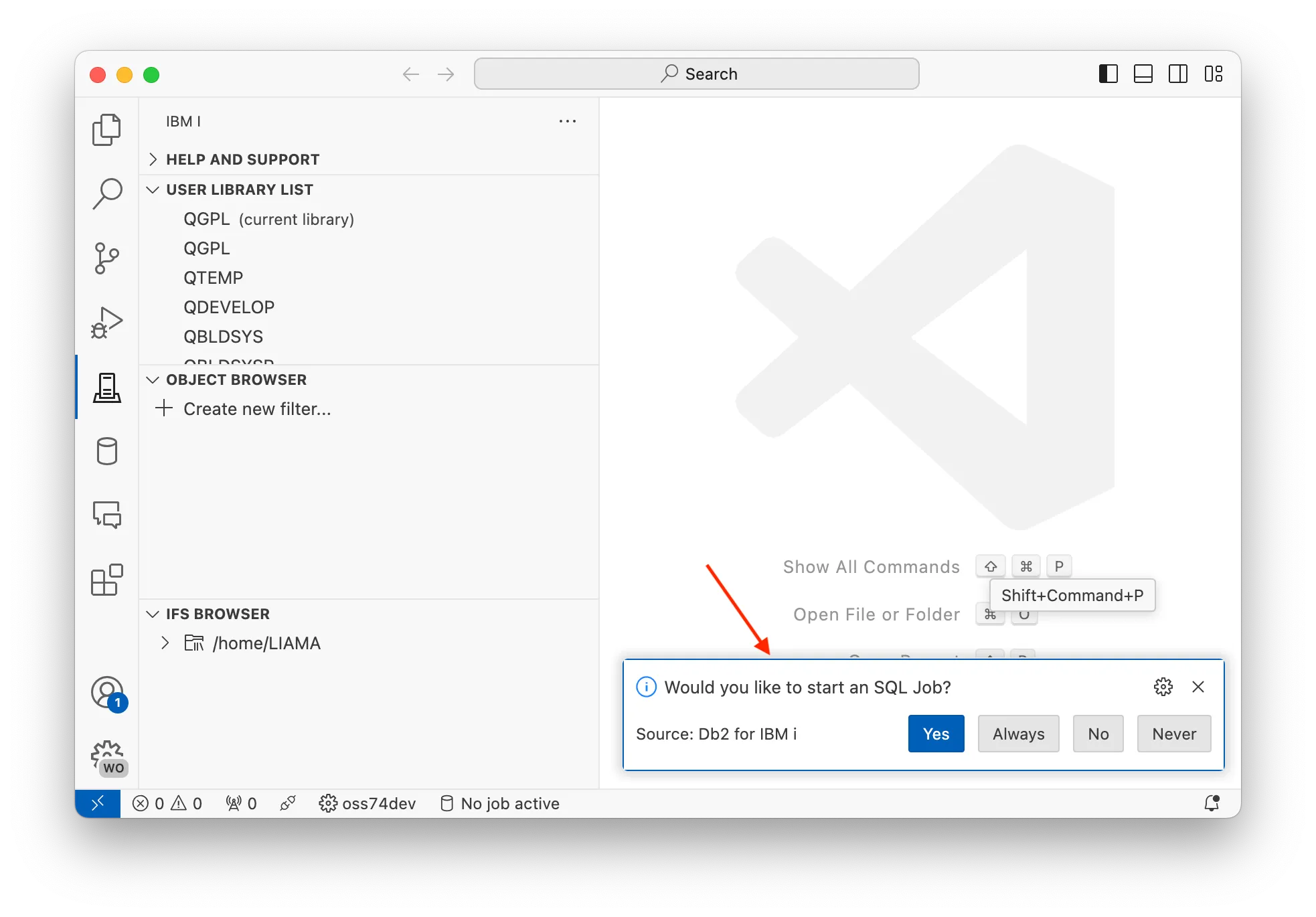
If the database extension has never been seen before, you will see a popup asking if you’d like to start an SQL Job. For now, select ‘Yes’ or ‘Always’. More will be covered on this later.
Db2 for i User Interface
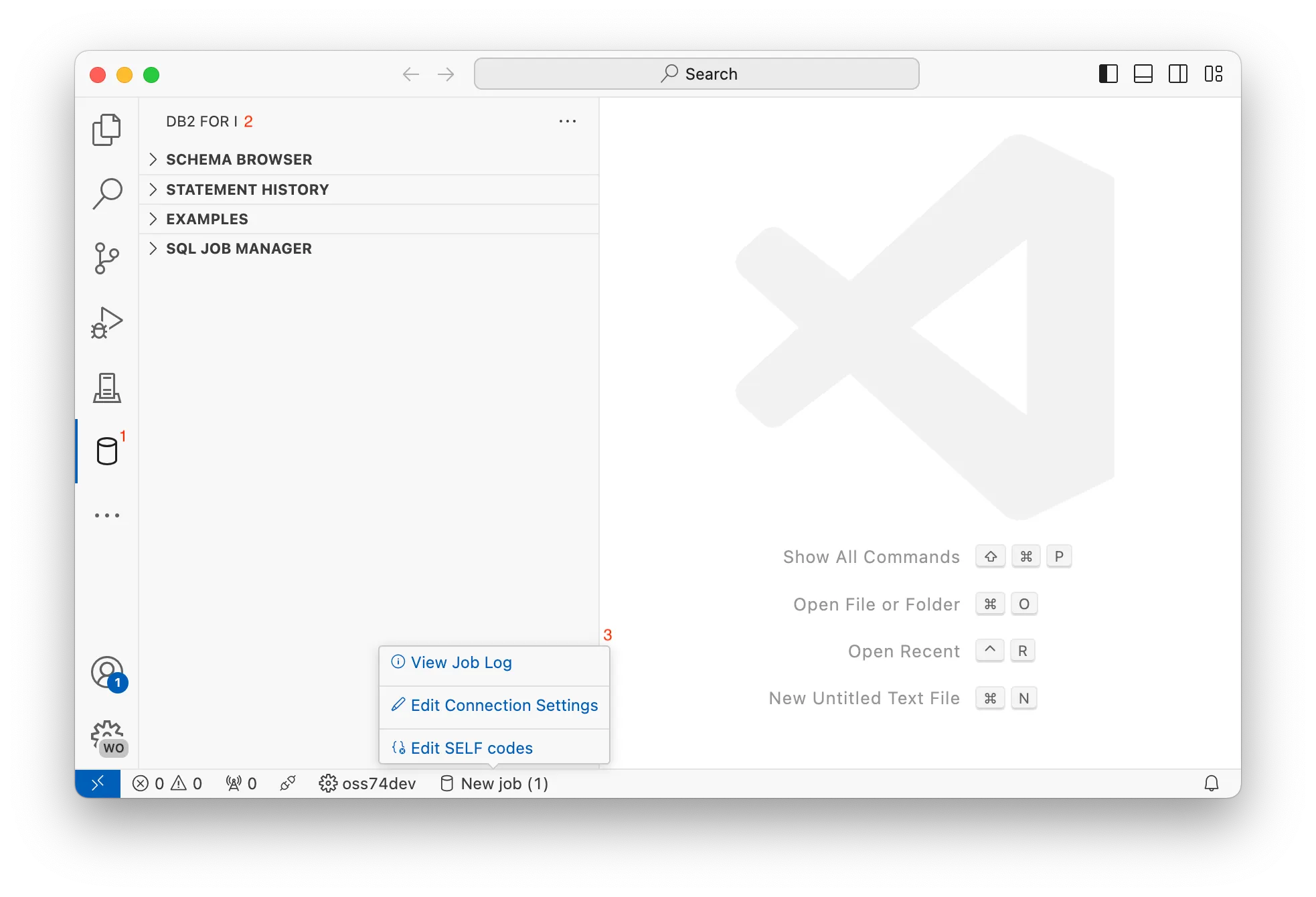
There are three areas that should be known when using the database extension in Visual Studio Code:
This database icon is where the database extension can be found inside of VS Code. Clicking it will load the available database panels.
When the database extension is select, the panels will show here. Most functionality can be found here.
The database extension has a quick pick item on the status bar, which the user can hover over to quickly access specific information.
Using the job manager
Intro
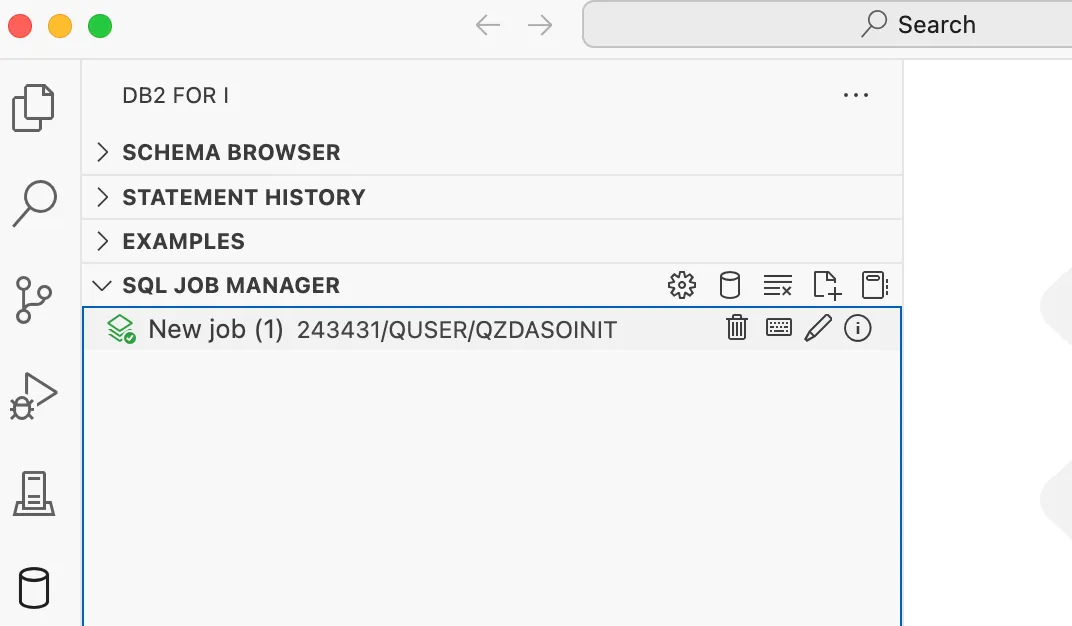
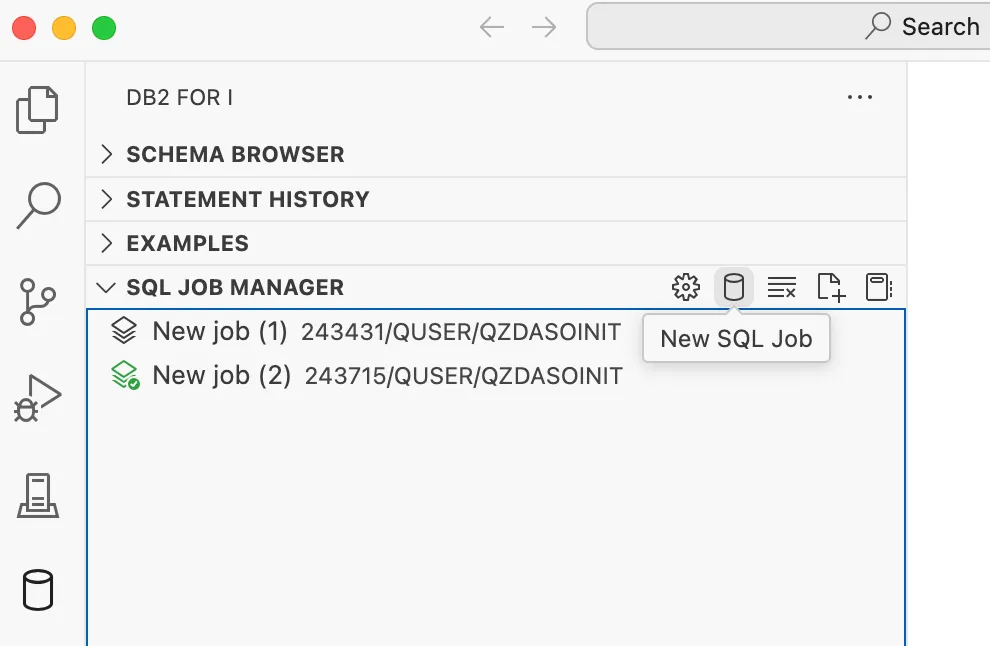
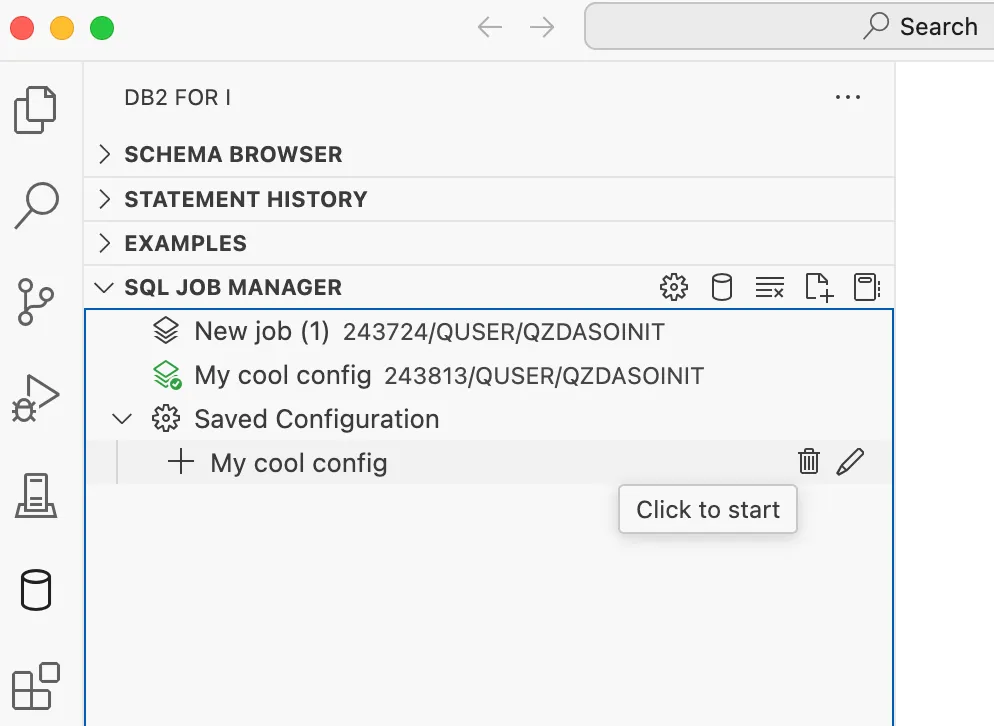
The job manager is used to maintain different jobs, all of which can be used to execute different SQL statements. You can spin up a new job by clicking the ⛁ (database) icon. Notice that the current job (in the screenshot) has the icon highlighted green. The highlighted job indicates the job that is going to be used when running SQL statements in VS Code. We call this the ‘selected job’.
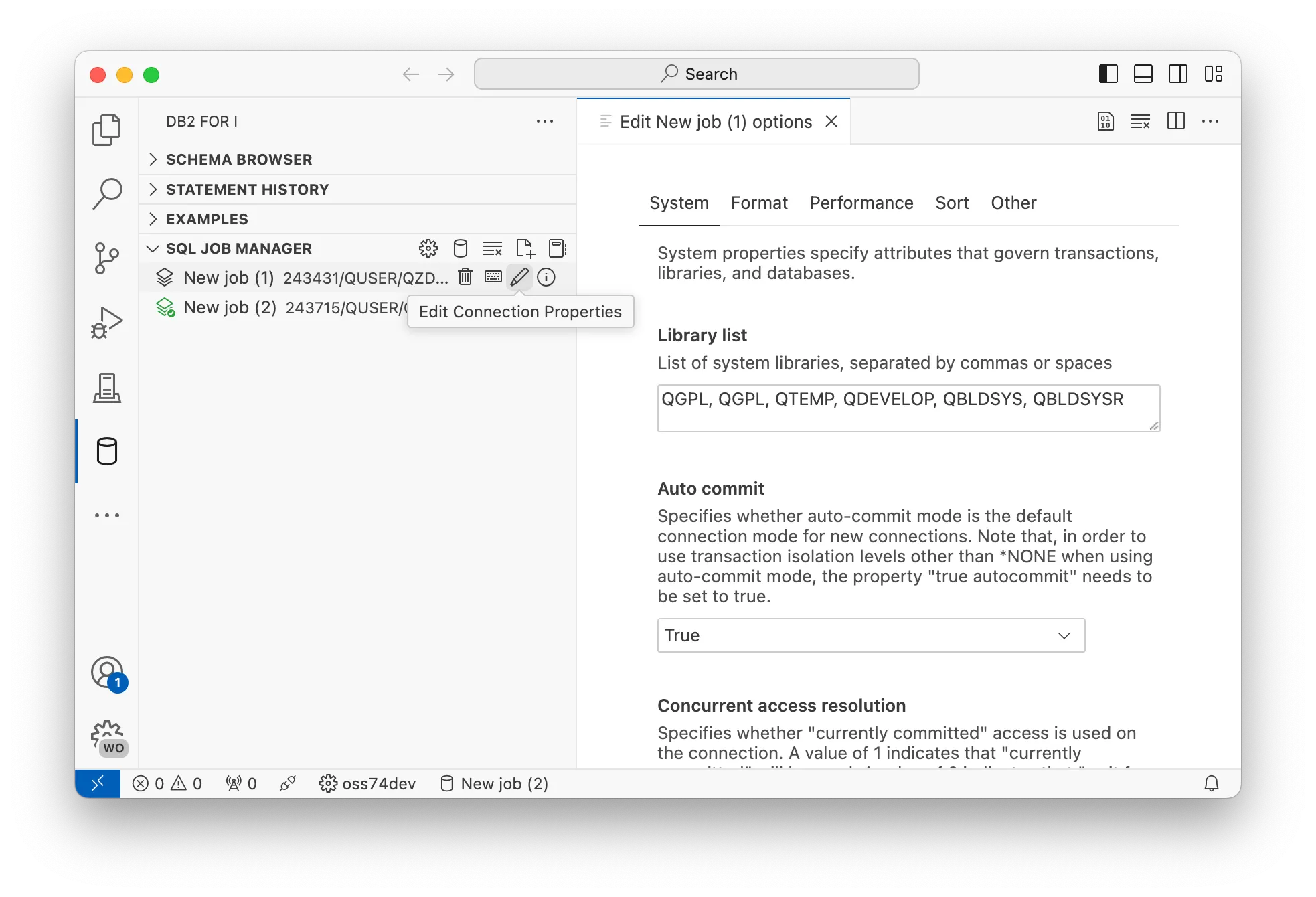
Each job has a set of icons when hovering over the item. Each job has unique JDBC settings, all of which can be edited by clicking on the ✎ (pencil) icon. You can also see the job log of a job by selecting on the ℹ (info) button.
There are also additional buttons to open new SQL documents and notebooks.
Tasks
1. Spin up two jobs
For this task, we are going to spin up two jobs that have unique settings for when we run SQL statements.
You can spin up a new job by clicking the ⛁ (database) icon.
2. Configure the jobs
Click on the ✎ (pencil) icon of the first job and see that a new tab opens where JDBC settings can be edited.
For a simple change, edit the library list entry under the System tab. Scroll to the bottom of the page and select ‘Apple changes’ to save. The job will be restarted when the changes are applied.
Do this for both jobs that you have.
3. Execute statements on both jobs
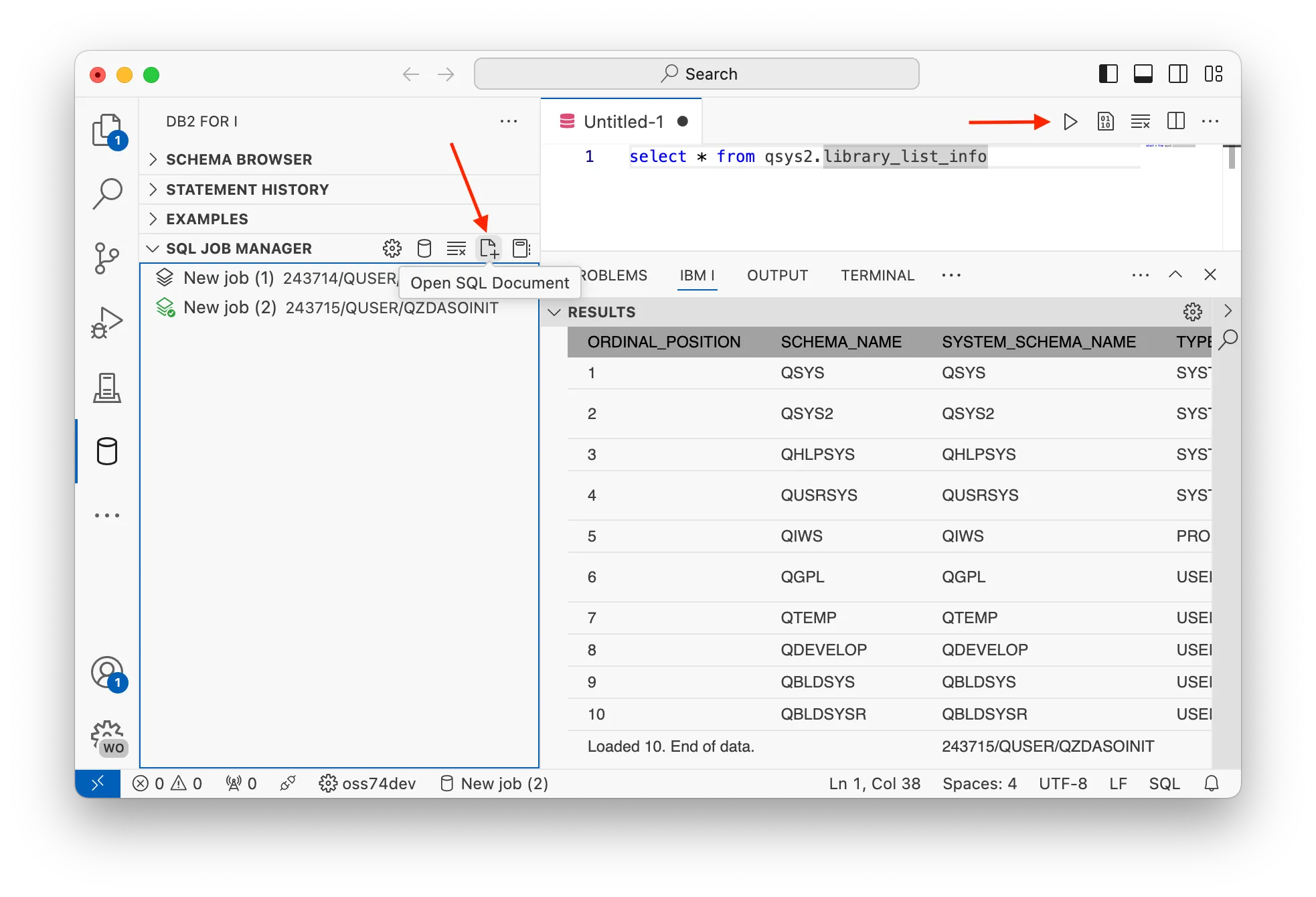
Use the ‘Open SQL document’ on the SQL Job Manager view to create an empty SQL document. This new document can be used to test the library list change with an SQL statement:
select*fromqsys2.library_list_info
To execute the statement, either the ▶️ (play) button can be pressed - or the shortcut Control/Command+R - can be used to execute the statement. The result set should appear below the SQL document.
Do this with both SQL jobs that were started.
4. Save your job configuration
Once a job has been configured to your liking, you can save the configuration so next time you start a job the settings will already be applied.
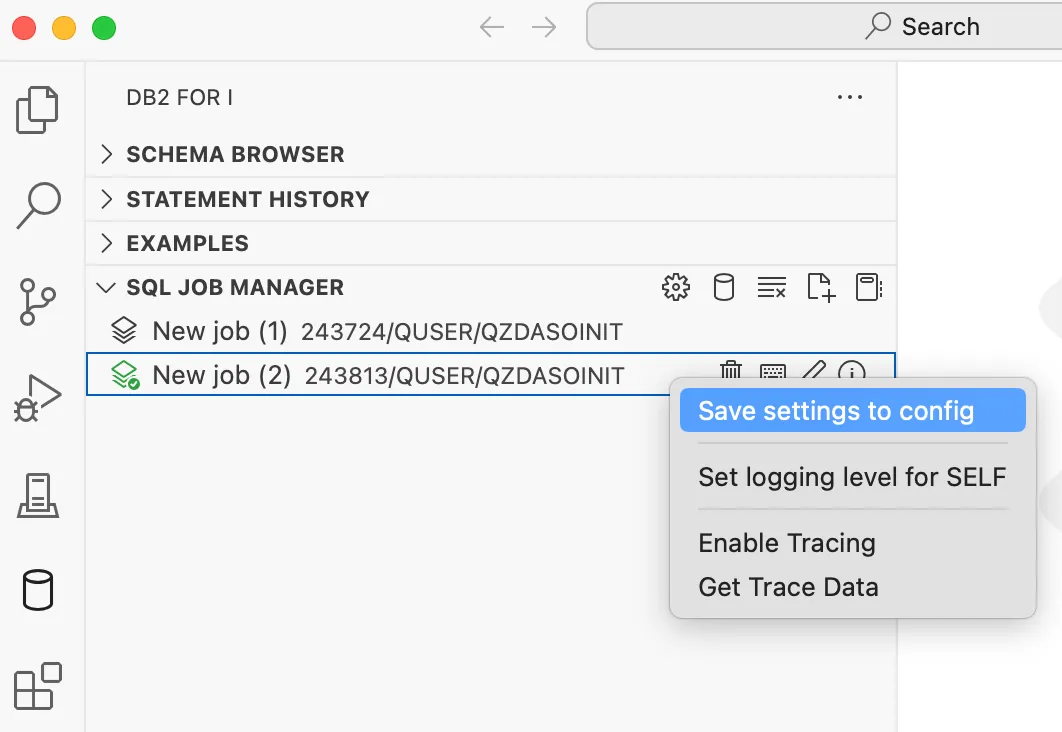
Right click on a job and select ‘Save settings into config’. This will allow you to provide a name for the configuration.
A new group will appear in the SQL Job Manager with your saved configurations.
click on the configuration to start a new job with that configuration
use the ✎ (pencil) icon to edit the configuration
use the 🗑️ (trash/bin) icon to delete the configuration
Takeaways
Here are the main items to remember from this section:
SQL statements run in a unique job
The user can maintain multiple jobs through the SQL Job Manager
The user can change the selected job by clicking on it. The selected job is highlighted with a checkmark
Executing statements
Intro
As discovered in the last section, it is possible to run statements in an SQL document with the ▶️ (play) button, or with the Command/Control+R keyboard shortcut. But there is more, like running statements in a unique view, seeing the statement history, and managing commitment control.
Tasks
1. SQL Naming Mode
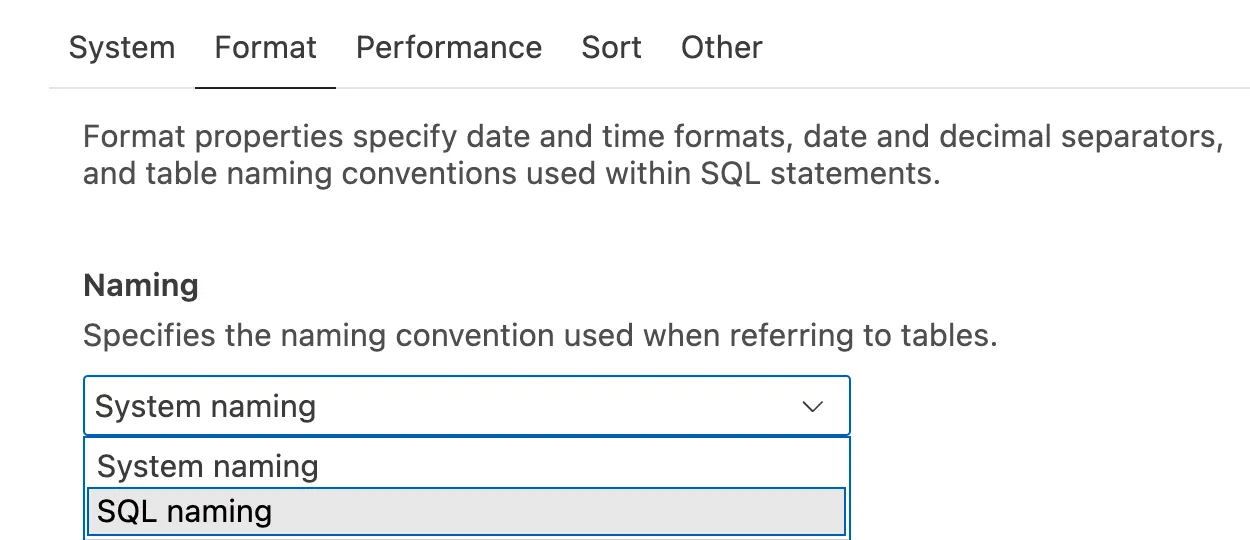
The naming mode used for your SQL is a configuration option that you should strictly control. The Naming can be set by editing a job in the SQL Job Manager, under the Format tab.
System naming - The / (forward-slash) character is used to separate the library or schema name from the table or view name. Using system naming allows the user to leverage the library list (*LIBL) as the mechanism to resolve unqualified object names. System naming is unique to Db2 for i.
SQL naming - The . (dot) character is used to separate the library or schema name from the table or view name. SQL naming is based upon the SQL standard.
2. Executing statements
Use the ‘Open SQL document’ on the SQL Job Manager view to create an empty SQL document. When the active editor is an SQL file (usually the .sql extension), then the ▶️ (play) button will appear.
Clicking the ▶️ (play) button will show a drop down, and the first entry in the list is the action to execute the statement. This shows the view in the lower panel with a scrollable result set. The shortcut, Control/Command+R, can also be used to execute the statement.
3. Cancelling a statement
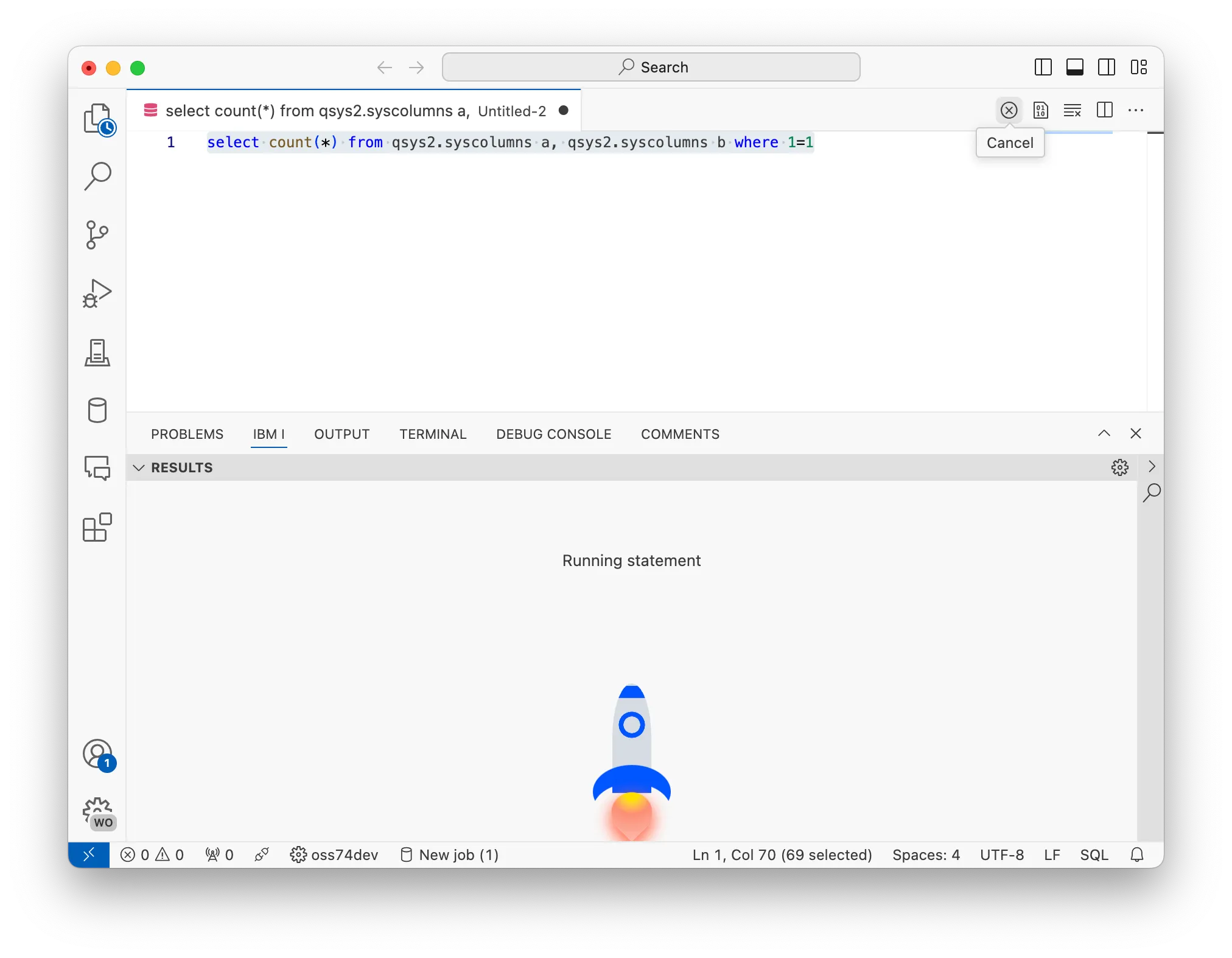
When executing a statement, the play button will turn into a ⓧ (cancel) button, which doesn’t immediately cancel, but instead requests that job should cancel the current running statement.
Try executing this statement, then use the ⓧ (cancel) button to stop it:
selectcount(*)
fromqsys2.syscolumns2 a, qsys2.syscolumns2 b
where1=1
4. Using statement history
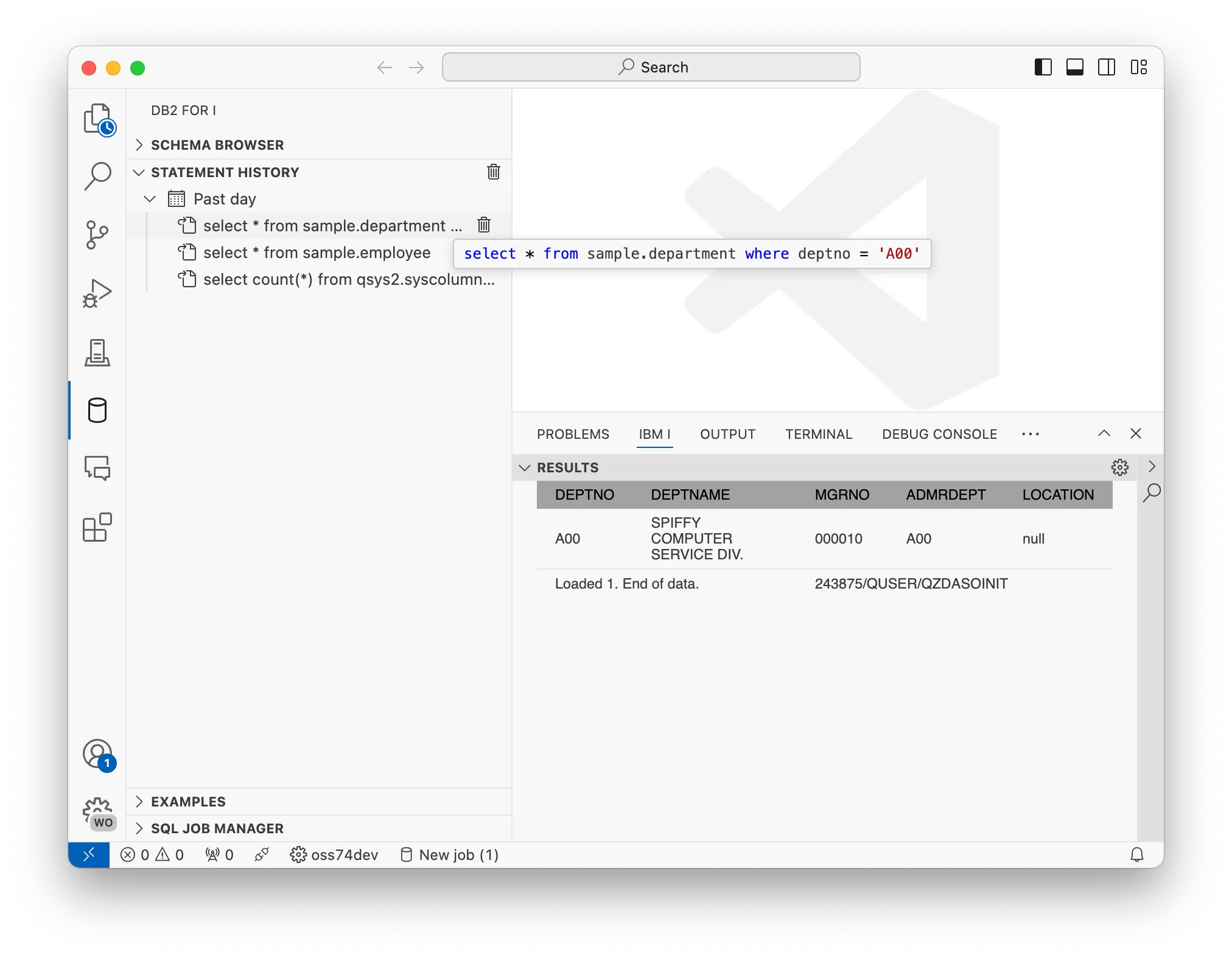
Every time you execute a statement, the statement will be prepended to the statement history so it can be accessed again quickly in the future. Statements in history are grouped by time period; last day, last week, last month, etc. Hovering over an entry will show it and clicking on it will open it into a brand new document. Single items can be cleared from history, and the entire history can also be cleared.
5. Managing commitment control
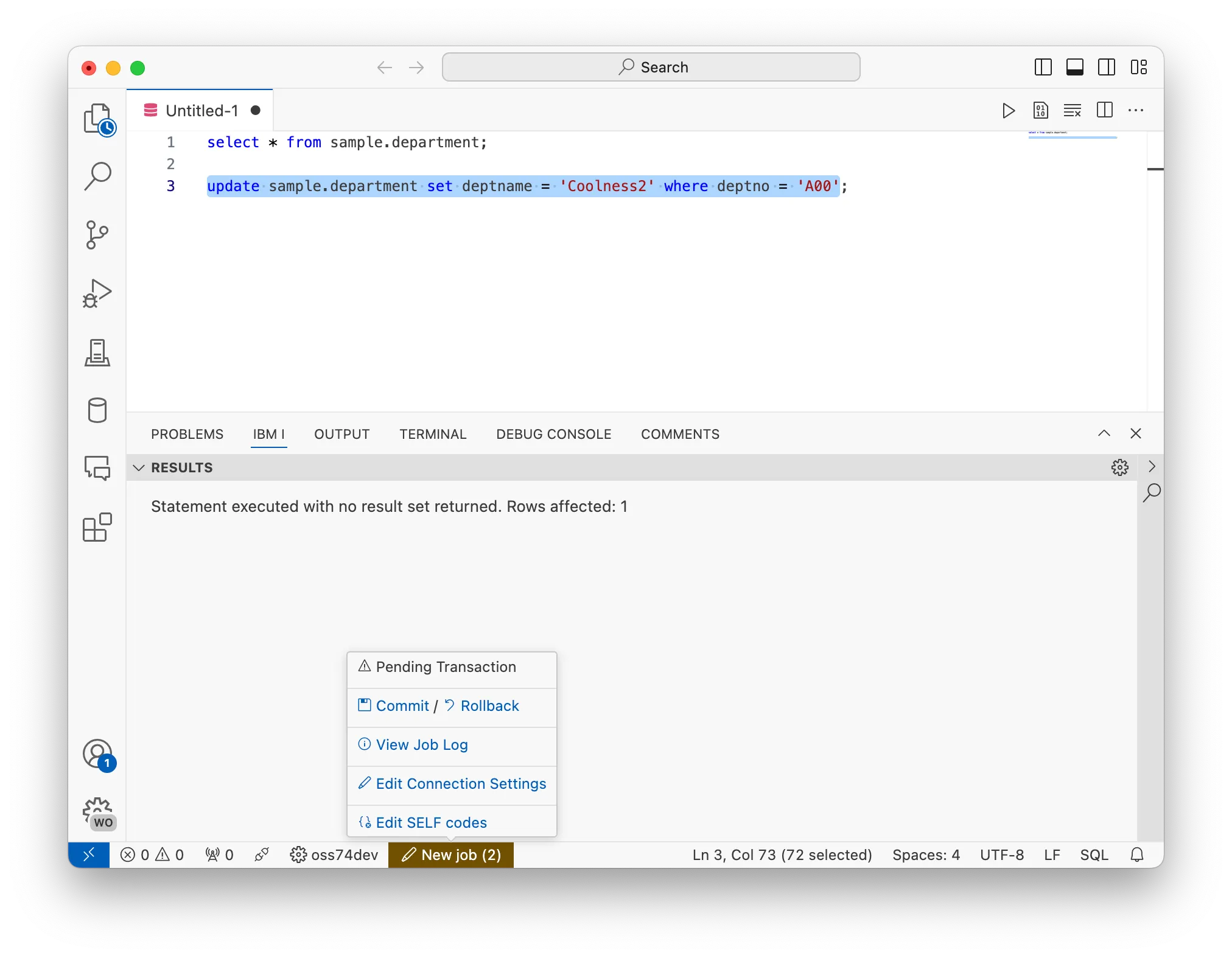
VS Code has a simple UI to show if your job has changes pending to commit in your job. In the screenshot, an update statement has been executed, and the result view shows that 1 row was updated. When your job has commitment control setup, the hotbar item will highlight when there are pending changes in your job. Hovering on the hotbar item with your current job will show new Commit and Rollback buttons.
Writing SQL
Intro
Seeing results is useful, but you become an expert when you know how to find out the information you want. By understanding how the content assist works in Visual Studio Code, you can practically navigate entire schemas while you’re writing SQL statements.
Tasks
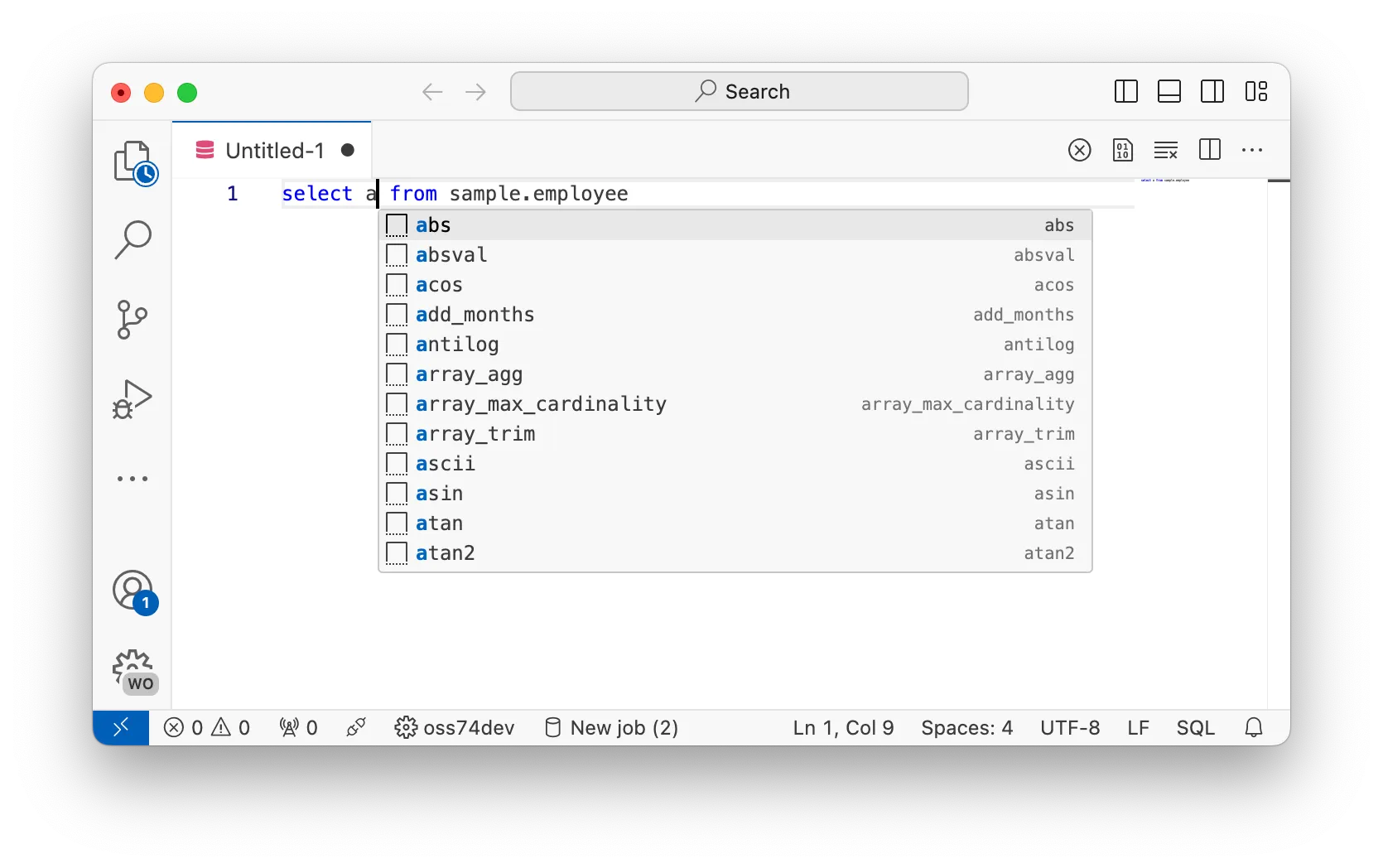
1. SQL functions
By default, when you trigger the content assist, VS Code will show available SQL functions as snippets.
Selecting the item from the list will insert it at the cursor location and, if available, show the required parameters.
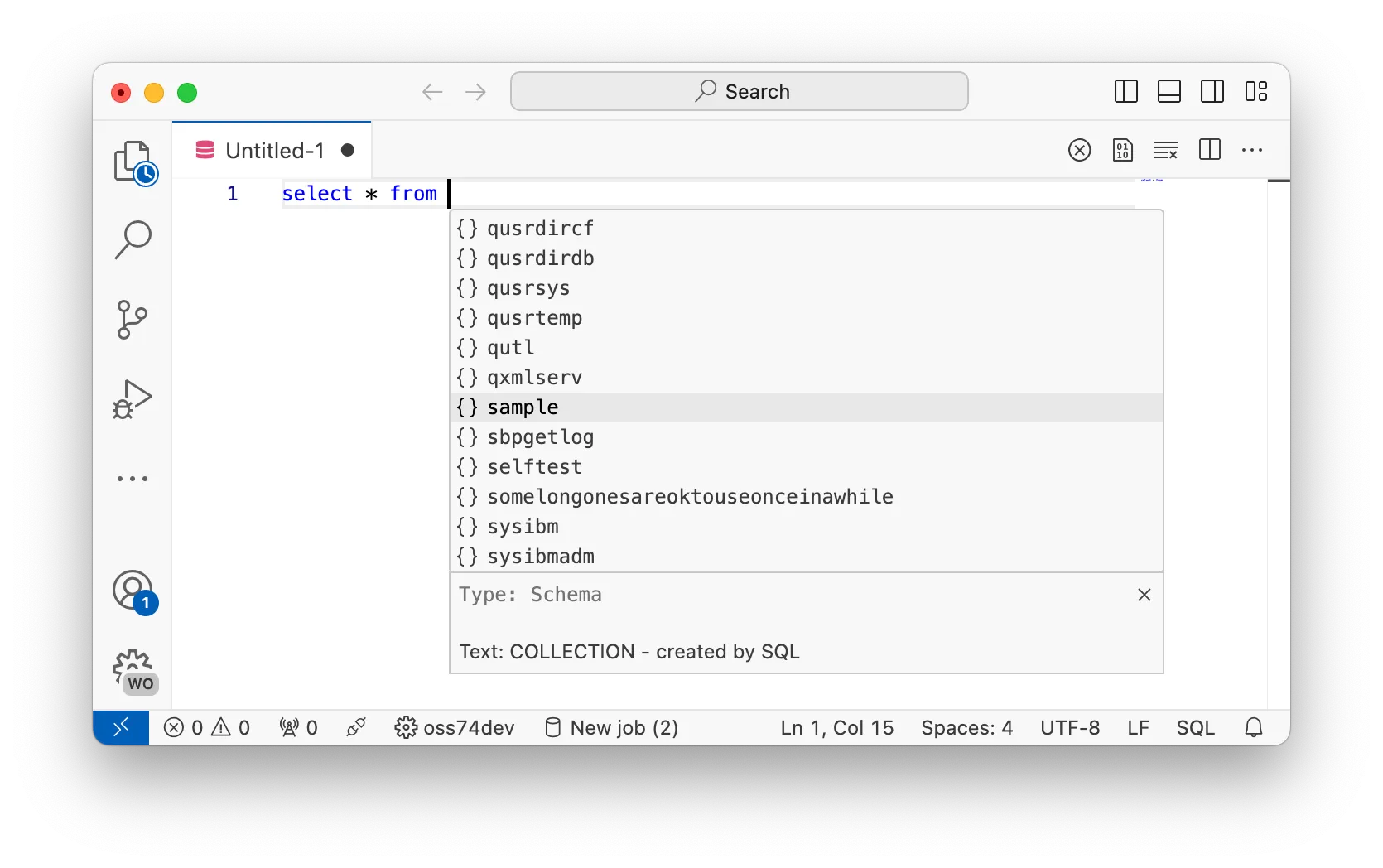
2. Looking for schemas
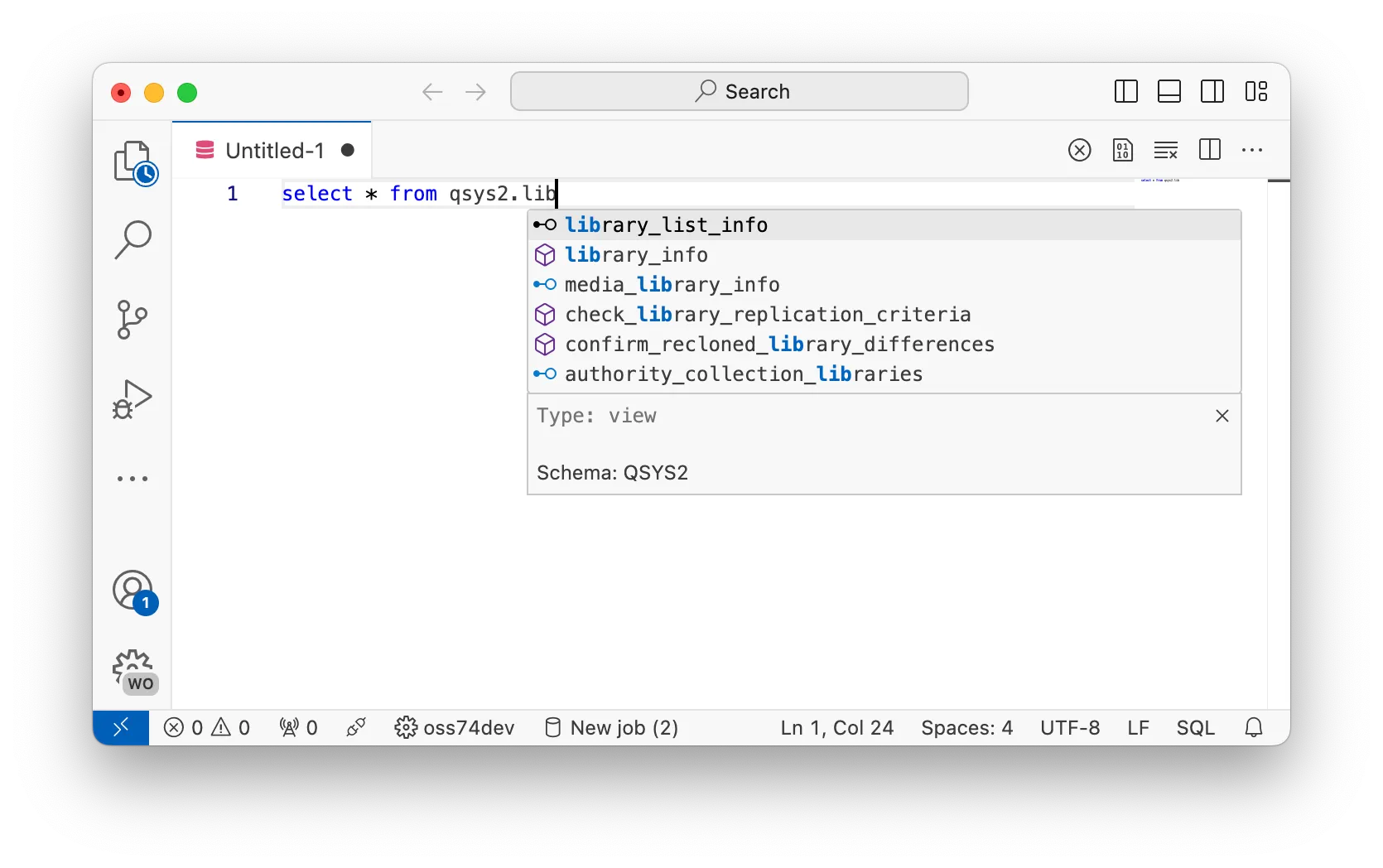
You can trigger the content assist at any point and expect to see a list of schemas available to you. Each schema entry has the double bracket icon
: {}
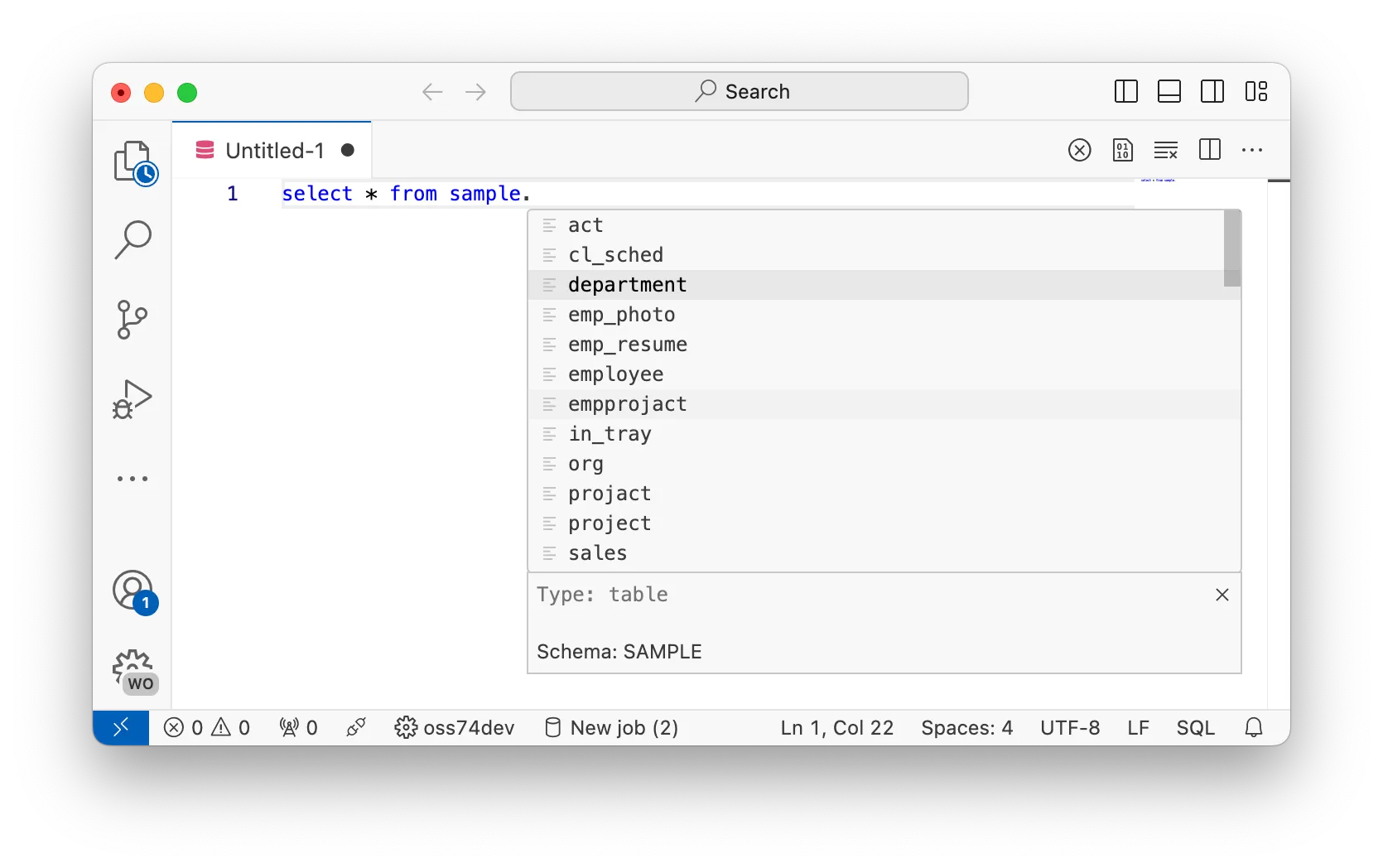
3. Looking at objects in schemas
If you enter a dot (.) after a schema, it will show available objects in the schema that you can reference, with the applicable type and text. Different object types have different icons.
4. Columns from tables, views, and table functions
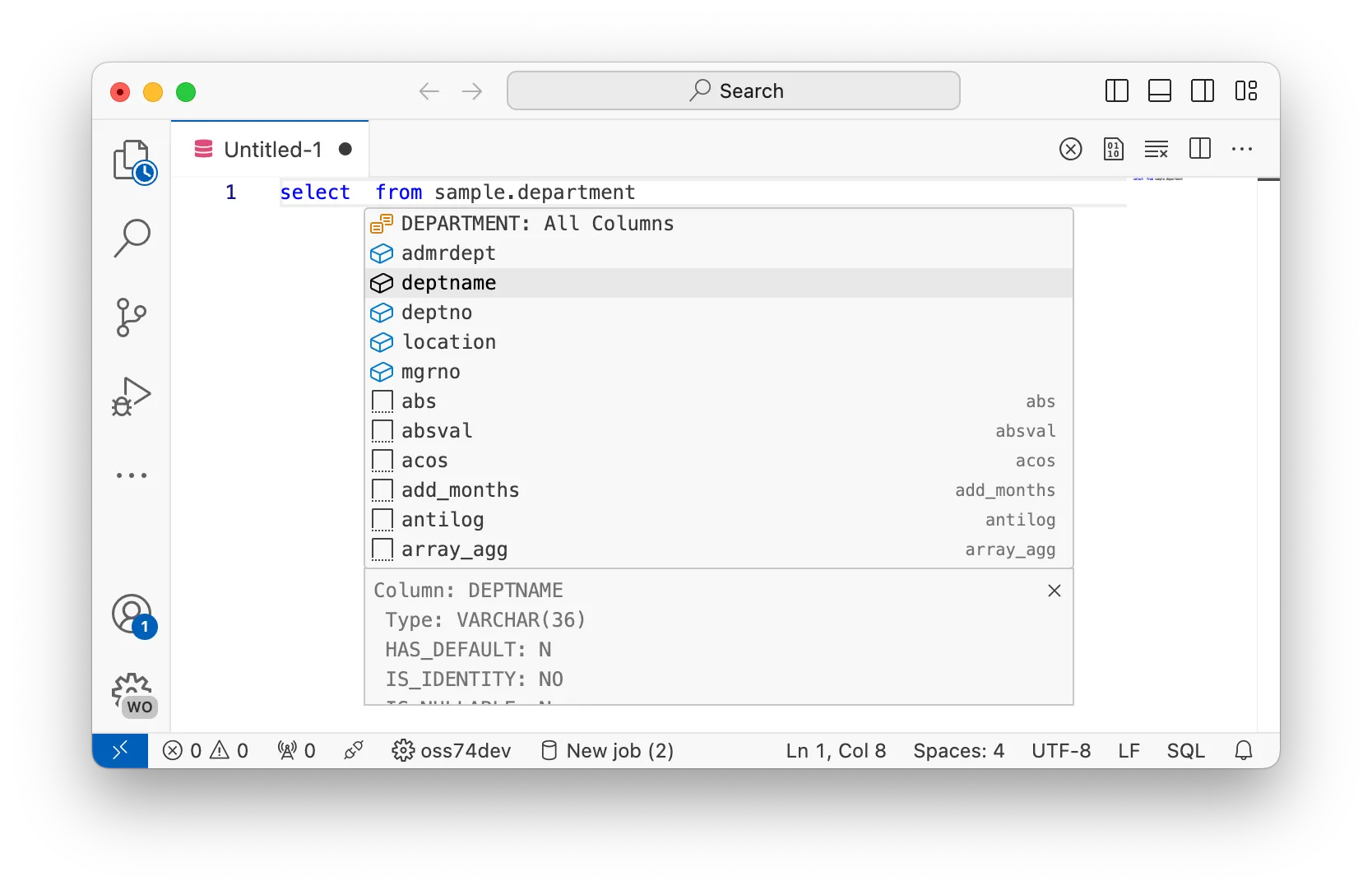
When you reference tables, views, table functions, etc, then you will also have access to the columns of those objects in the content assist.
5. Procedure and function call signatures
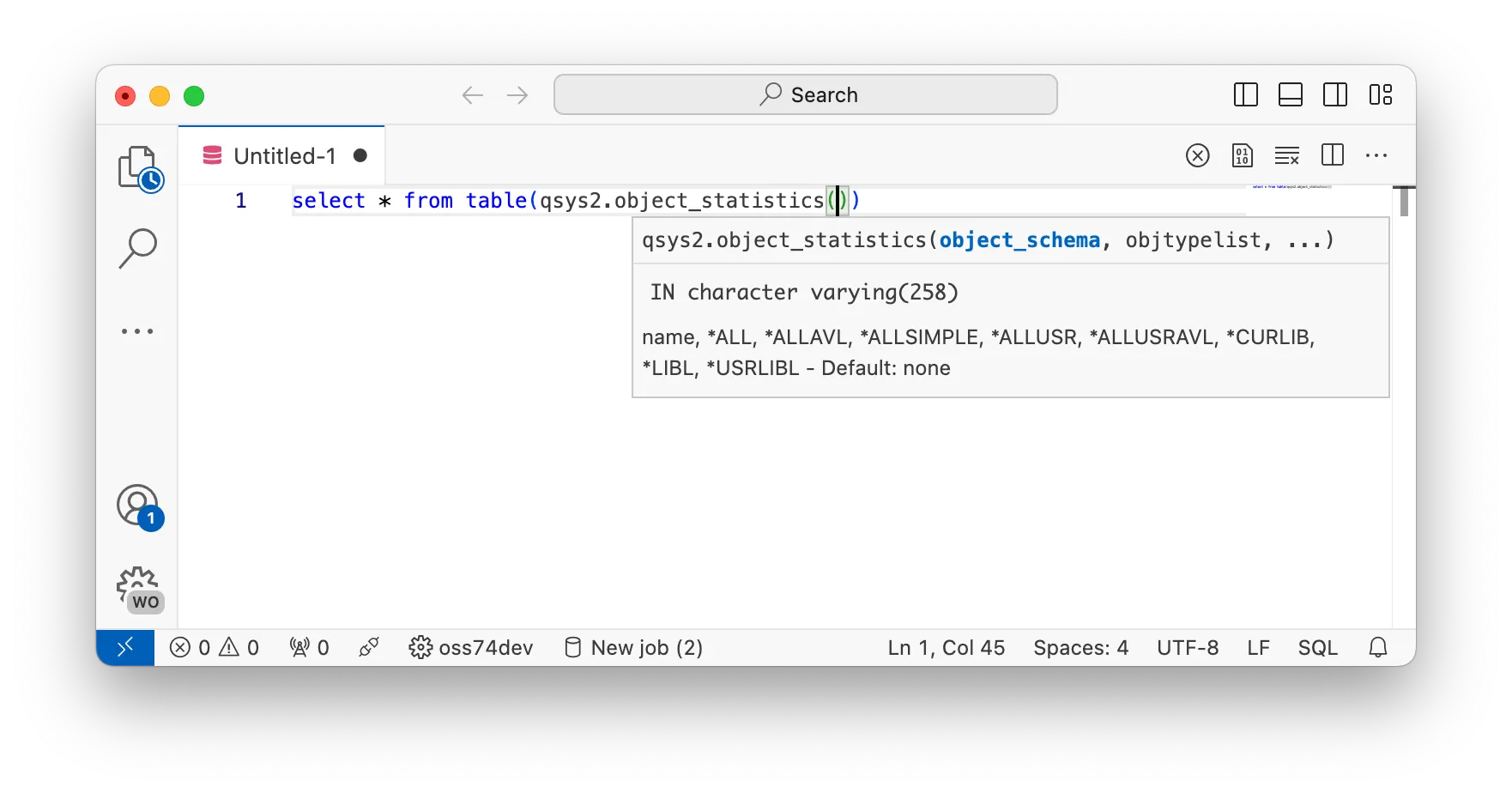
When calling a function or procedure, after entering an open round bracket ((), then the signature information should appear. This shows, as you are writing the parameters to the routine, what the current information is for the current parameter you are writing for.
6. Dealing with host variables
If you have host variables in a statement you are trying to execute, you will find that the statement does not execute right away. Instead, it will highlight the host variables so the user can replace them correctly. You can Tab and Shift+Tab between the host variables. When the variables have been removed, then the statement can be executed.
select*fromqsys2.syscolumns2
where
data_type = :theType and
is_nullable = ?
limit10;
7. Using the syntax checker
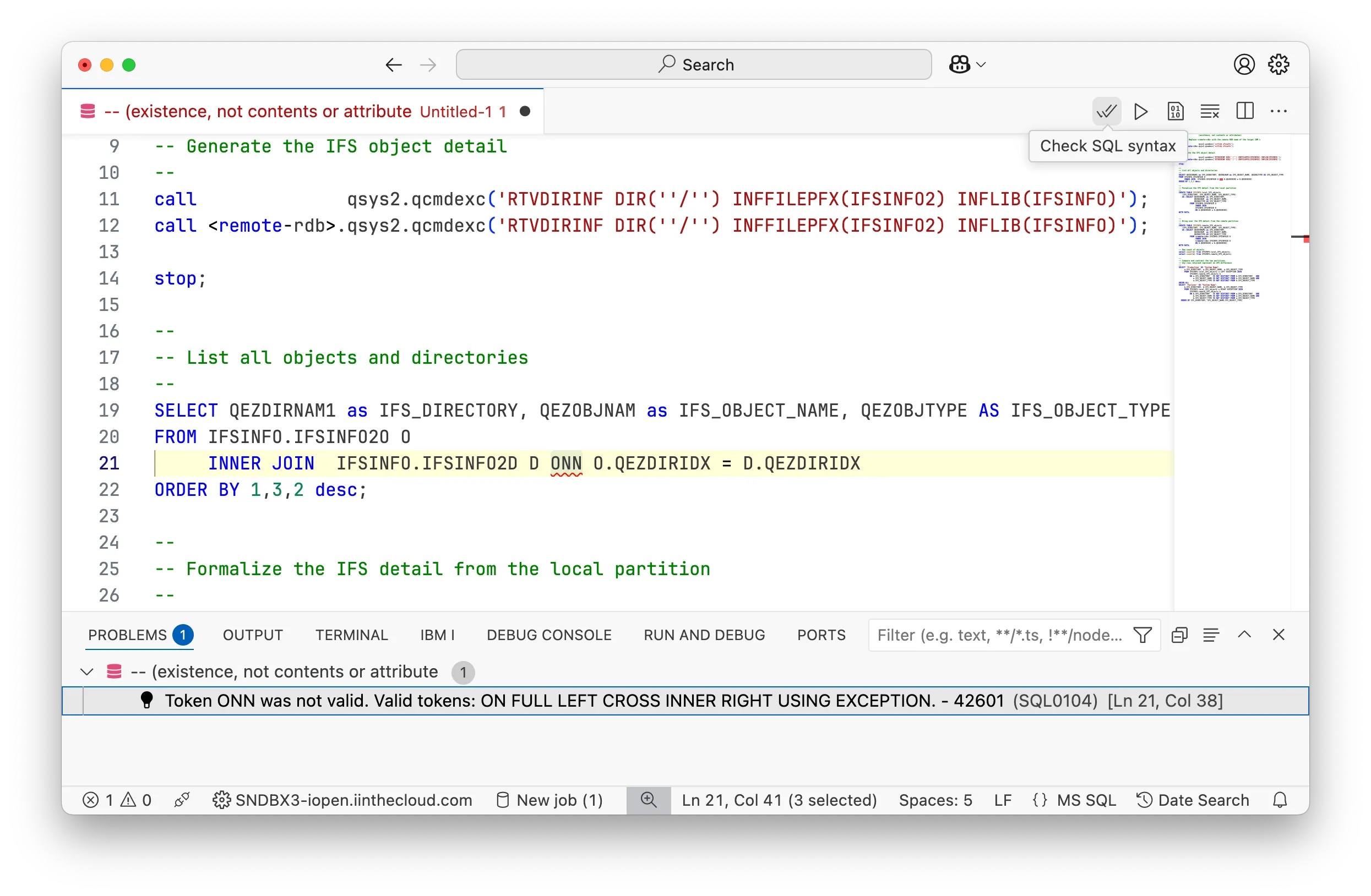
The SQL extension has a built-in syntax checker that will check the SQL statement for syntax errors. This is done when the SQL documents are edited, or when triggered by the user. If the SQL statement is invalid, the editor will show a red squiggly line under the invalid part of the statement.
You can use the ‘Check SQL syntax’ button on the SQL document to trigger the syntax checker.
Exporting data
Intro
The Db2 for IBM i extension provides simple ways to export result sets to multiple formats. The SQL prefix supports a ‘statement prefix’, which tells the SQL execution how to process the statement. ACS has support for the cl prefix, but VS Code adds to that by supporting csv, json and sql.
Task
Try executing a statement to generate a CSV document, JSON document and SQL insert statement:
-- result set as normal table
select*fromsample.employee;
-- result set as JSON, will open in a new file
json: select*fromsample.employee;
-- result set as CSV, will open in a new file
csv: select*fromsample.employee;
-- result set as SQL insert statement
sql: select*fromsample.employee;
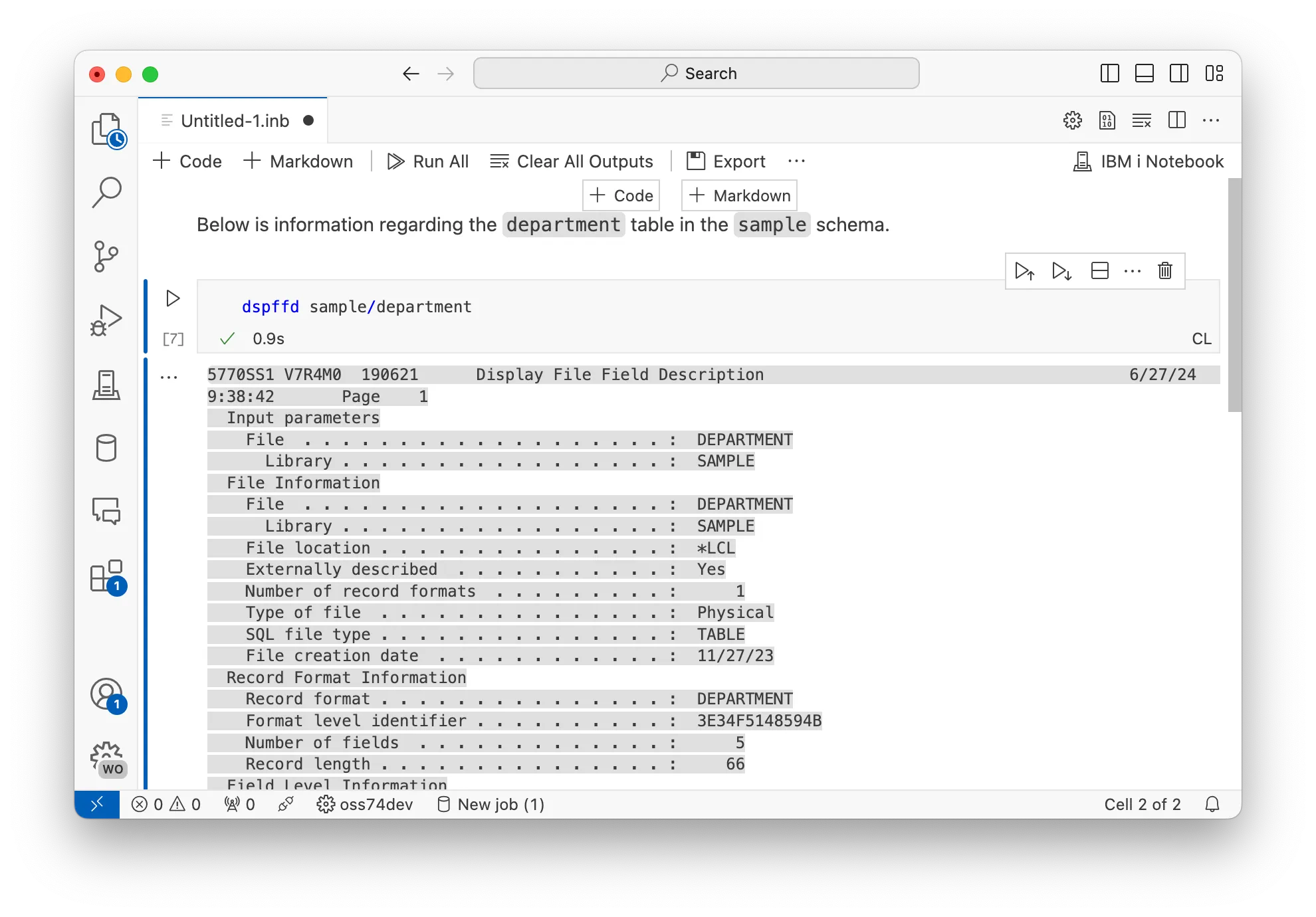
-- run CL commands. output is directed to IBM i output channel
cl: dspffd sample/employee
Schema Browser
Intro
Schema Browser is a view where users can explore schemas, and SQL objects inside of those schemas. Additionally, context options on some objects as well as viewing columns or parameters to others.
Tasks
1. Adding and removing schemas
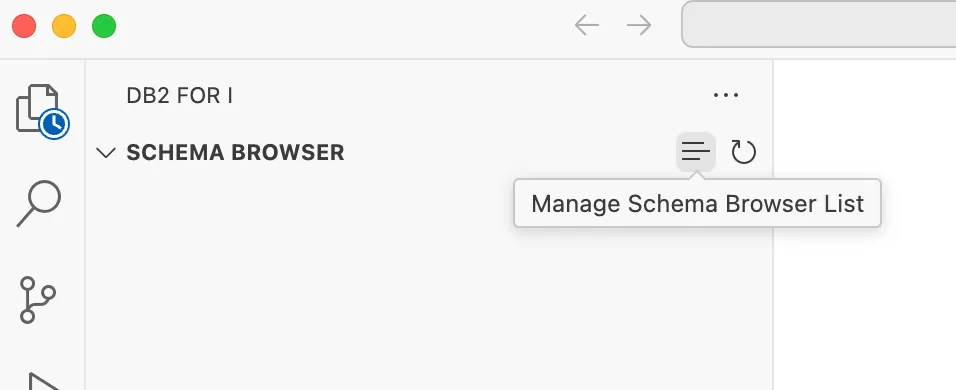
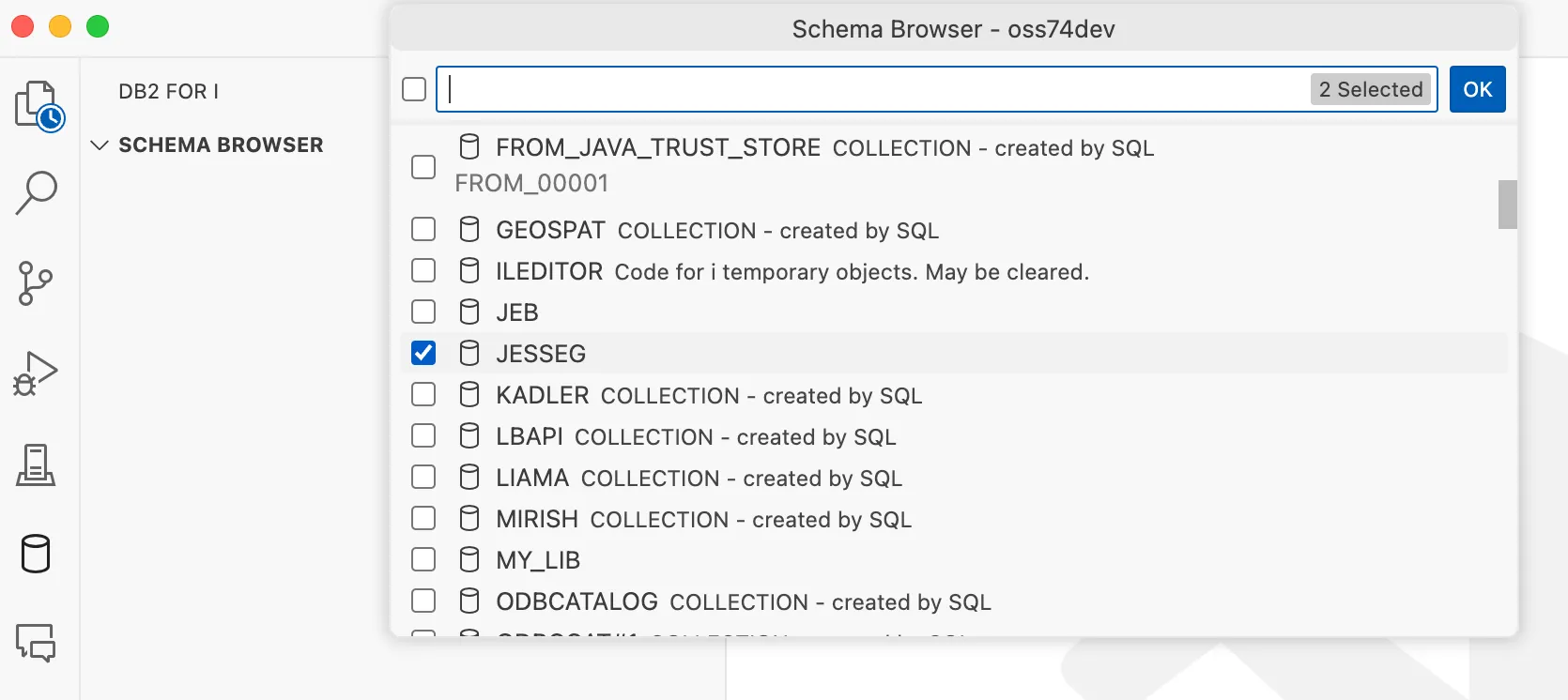
To add schemas to the Schema Browser, select the ‘Manage Schema Browser List’. When the list appears, you are able to filter down and select the schemas you want to appear in the list. Select OK when the items have been selected correctly.
2. Browsing schemas
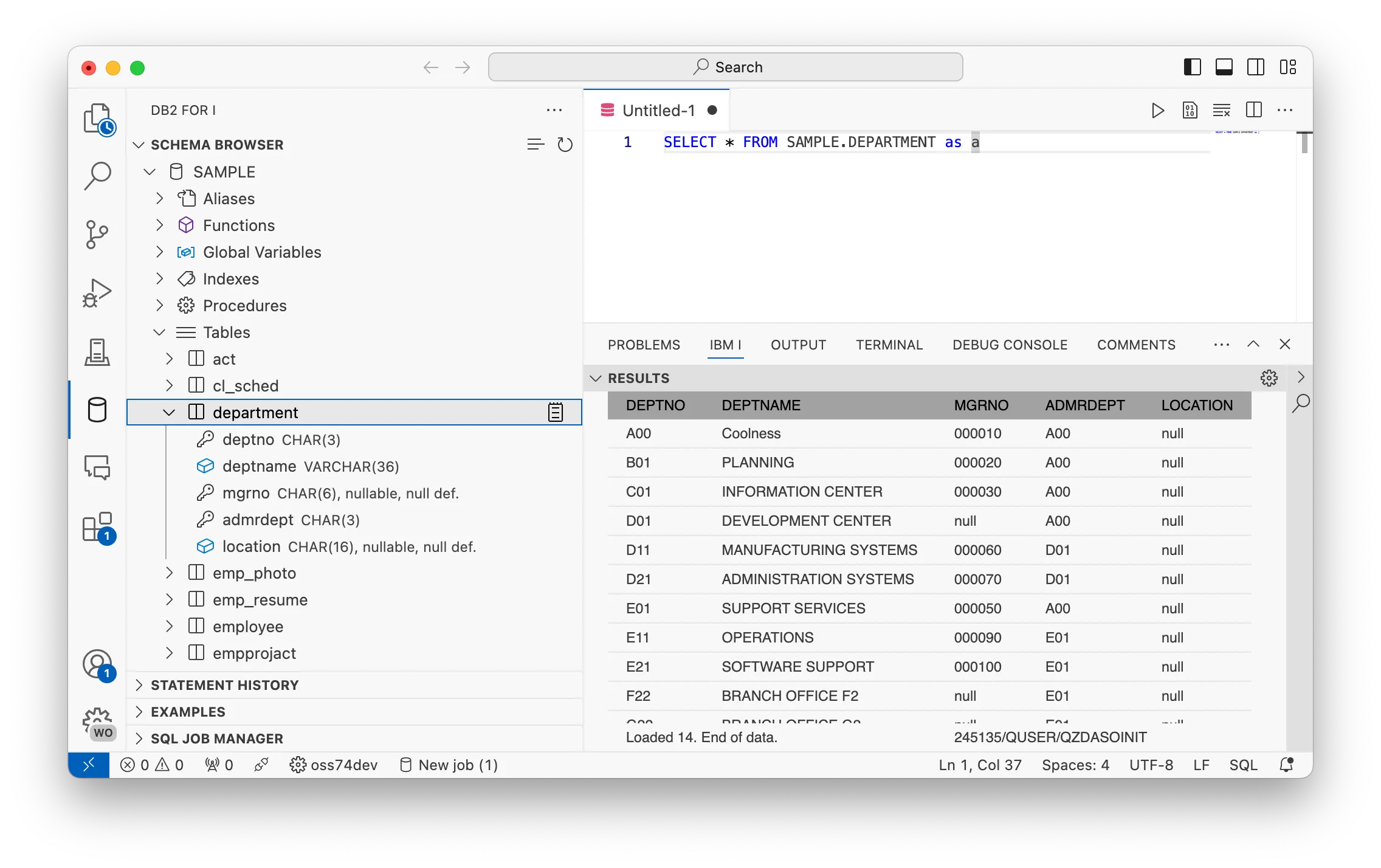
When schemas are expanded, objects are grouped by object type. Expanding a type will show the objects in that schema of that type.
Tables and views have a button on each item to quickly view the data, which will open a new SQL document with a pre-written select statement and will automatically execute it.
3. Object options
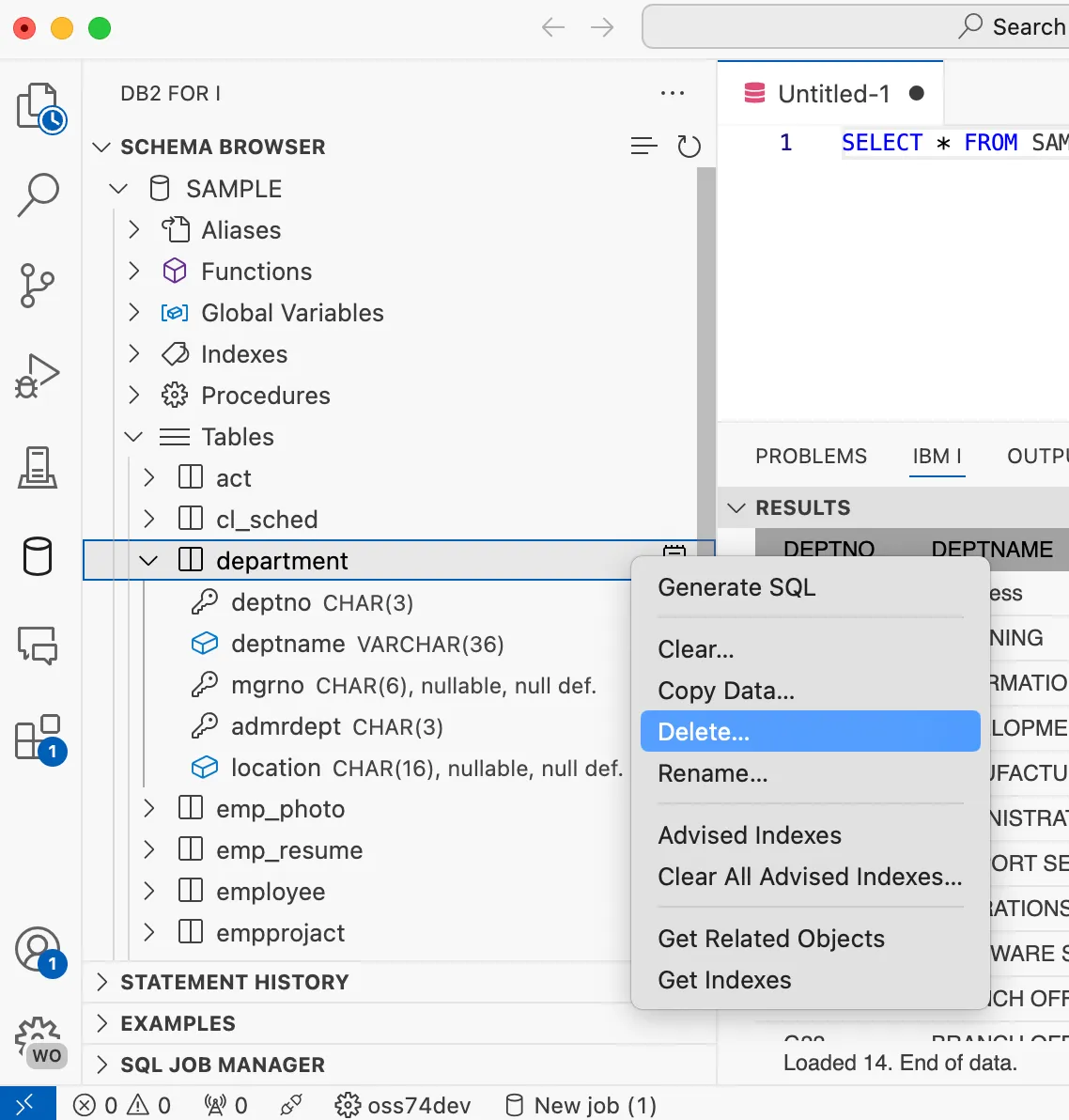
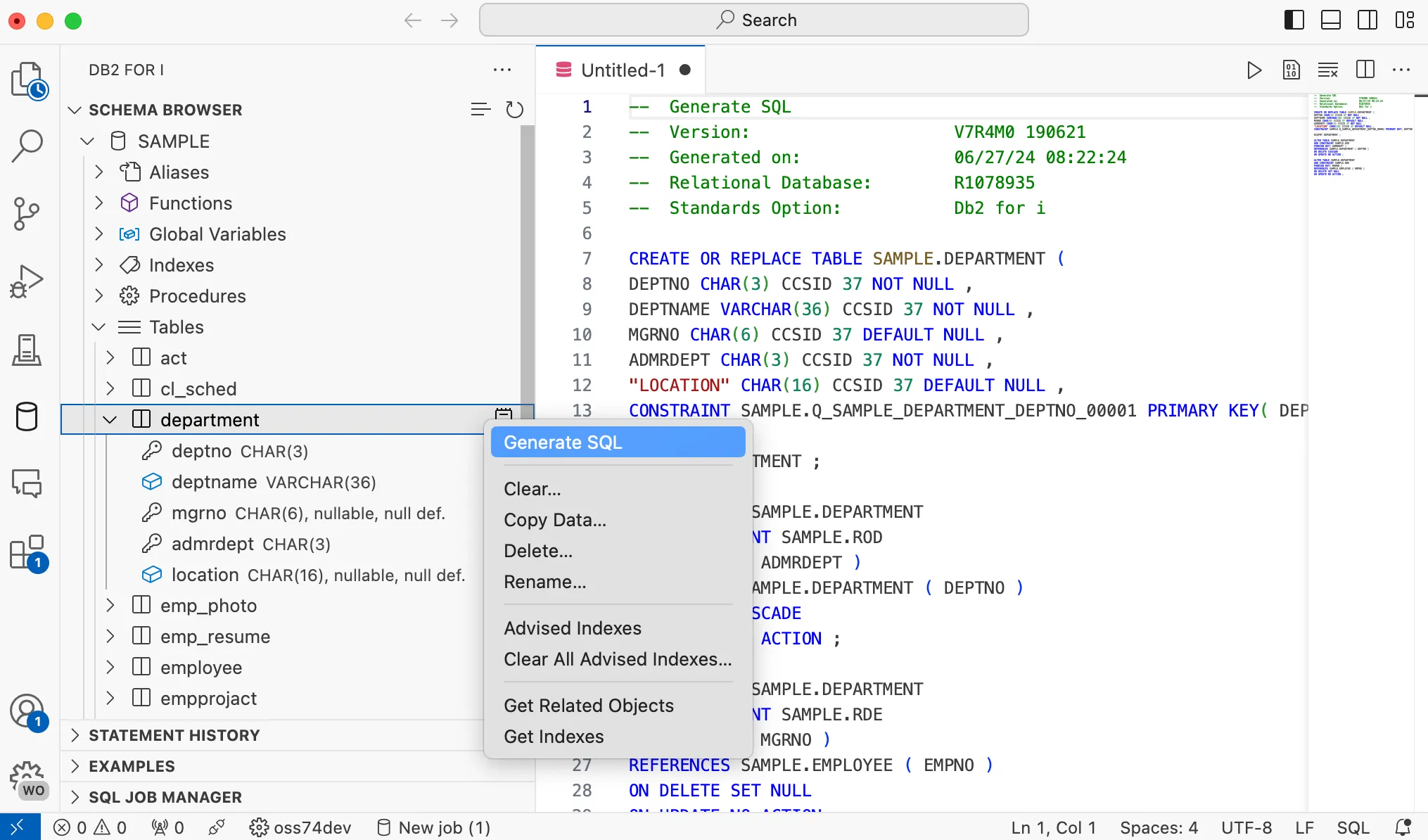
Some objects have right-click context options on there.
All objects will have the ability to delete and rename.
4. Generating SQL
All SQL objects will have the ‘Generate SQL’ option, which will generate the SQL that can be used to recreate the object.
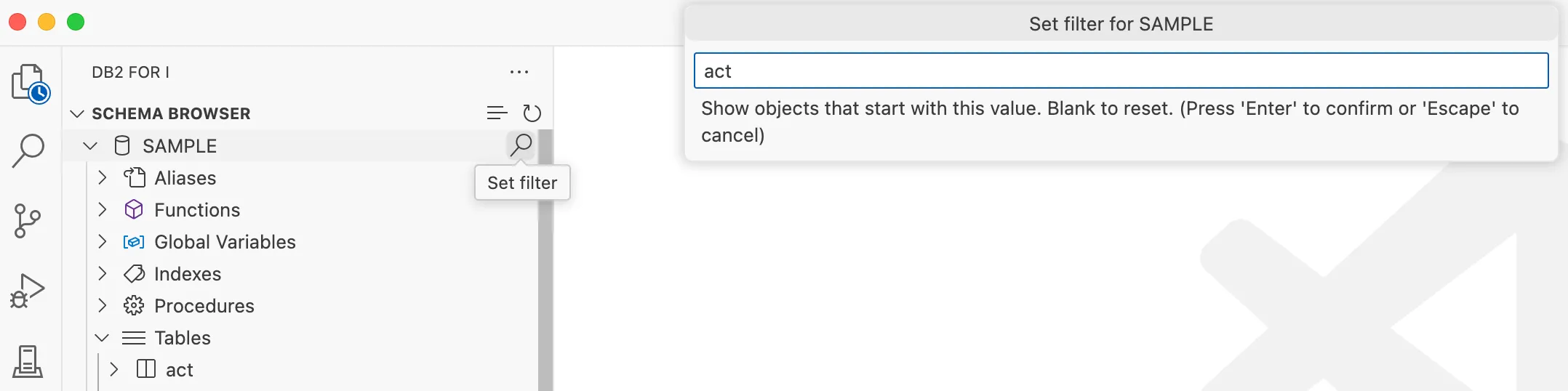
5. Filtering / searching a schema
All schemas have the ability to filter objects in a schema to find something specific. Click on the 🔎 (search) icon, which will show an input box where a case-insensitive name can be provided.
Visual Explain
Intro
Visual Explain is an essential tool for anyone who wants to use SQL Query Engine (SQE) insight to understand the performance characteristics of their SQL.
Visual Explain is often referred to as VE. SQE, as a cost-based optimizer, considers many factors before settling on the “plan” for query implementation.
By using VE during development and unit tests, IBM i application developers can gain crucial performance insights, and tune their SQL prior to promotion.
Tasks
1. Explaining a statement
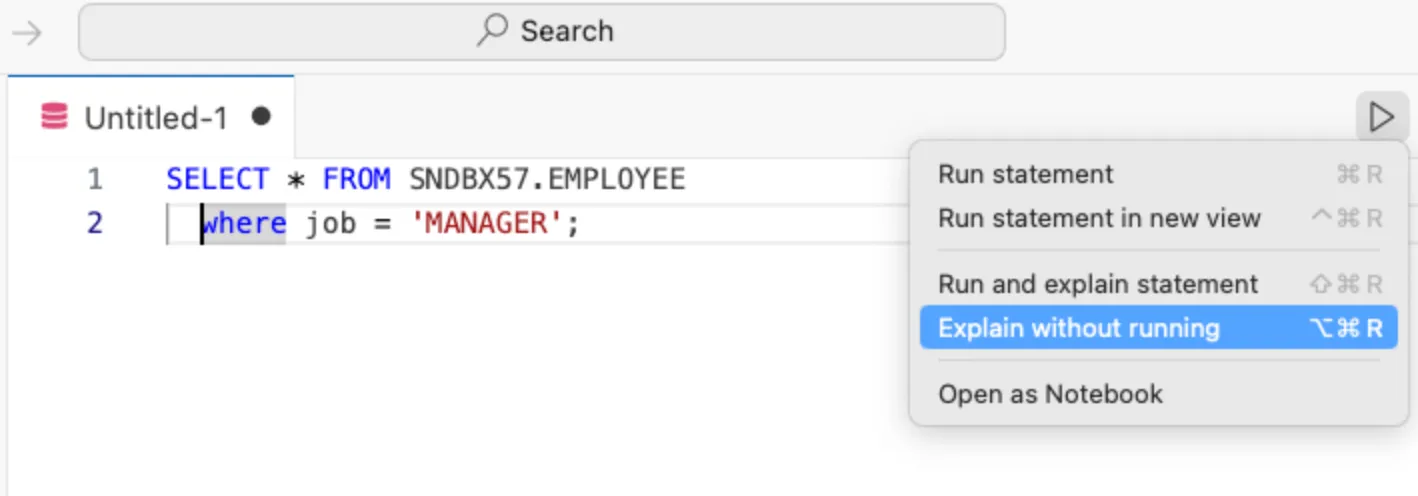
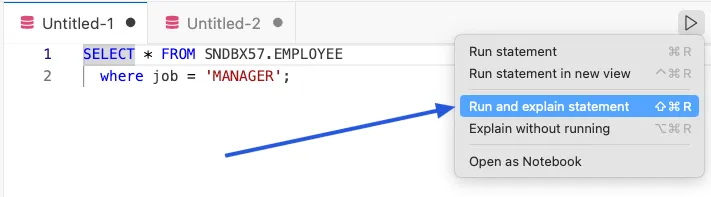
Explaining SQL is as simple as executing an SQL statement. Do a select against employee and be sure to use a predicate (where clause):
SELECT*FROMSNDBX57.EMPLOYEE
where job ='MANAGER';
2. Reading the VE data
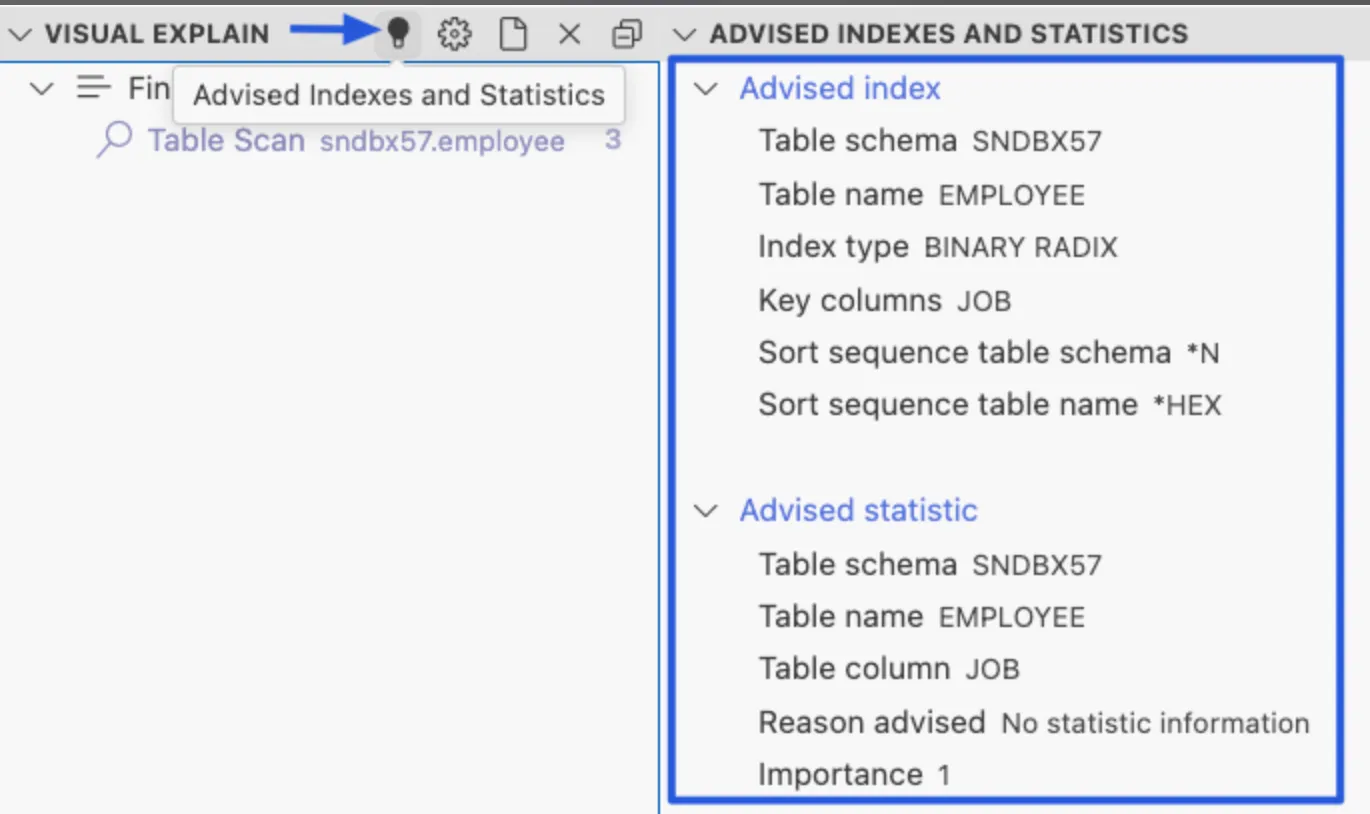
The first most action is a lightbulb icon that acts as the access point for ‘Advised Indexes and Statistics’. Click on it and you’ll see that SQE would appreciate having a binary radix index where the index key is JOB. This is no surprise, because it could be much faster to find all rows that have a specific value for JOB if an index exists over that column. However, keep in mind that index advice is just that, advice, and a proper index strategy includes awareness of existing indexes and observation of usage statistics and index advice.
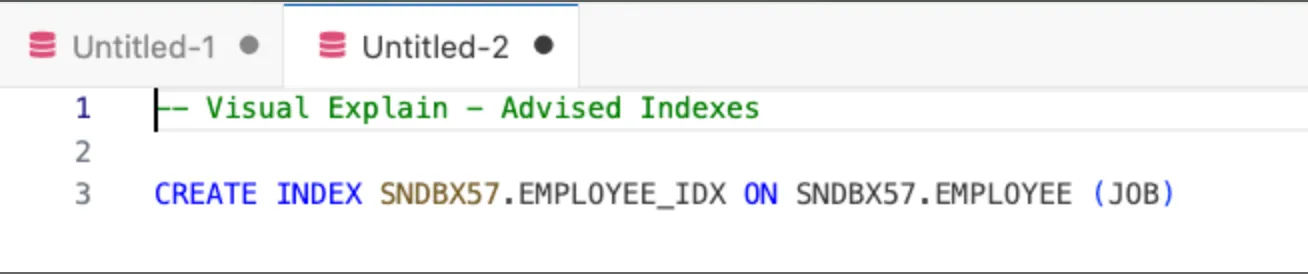
If we love the advice SQE is showing us, we can click on the ‘Generate SQL for Advised Indexes’ and voila!, a CREATE INDEX (SQL) statement will be generated.
We might want to revise the index name before executing if we indeed decide to establish the index.
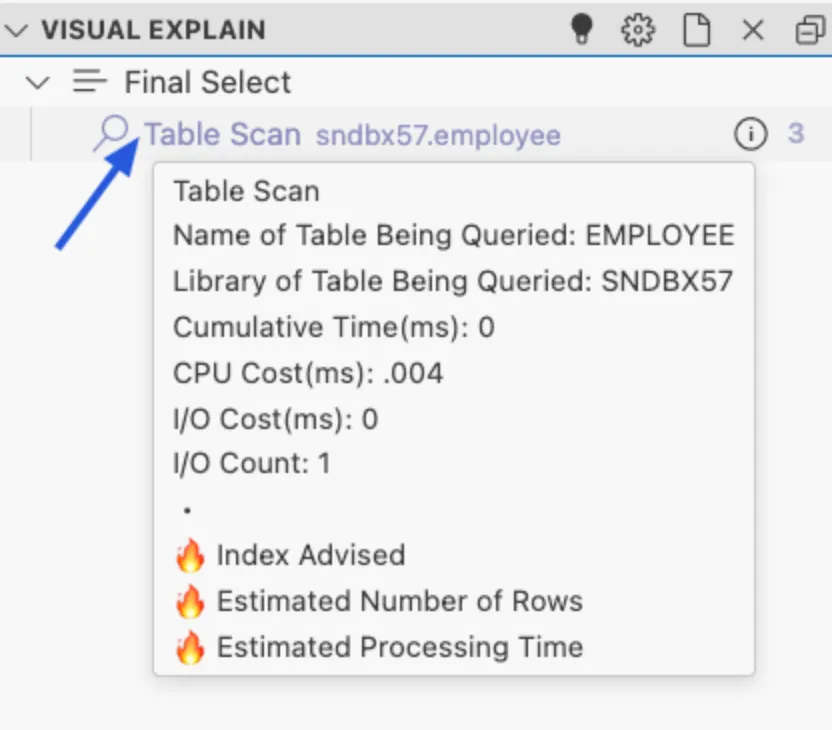
To see summary detail for the VE detail, locate your mouse pointer over the ‘Table Scan’ row.
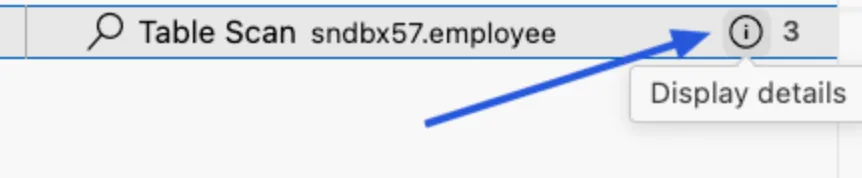
To see the full VE details, click on ‘Display details’.
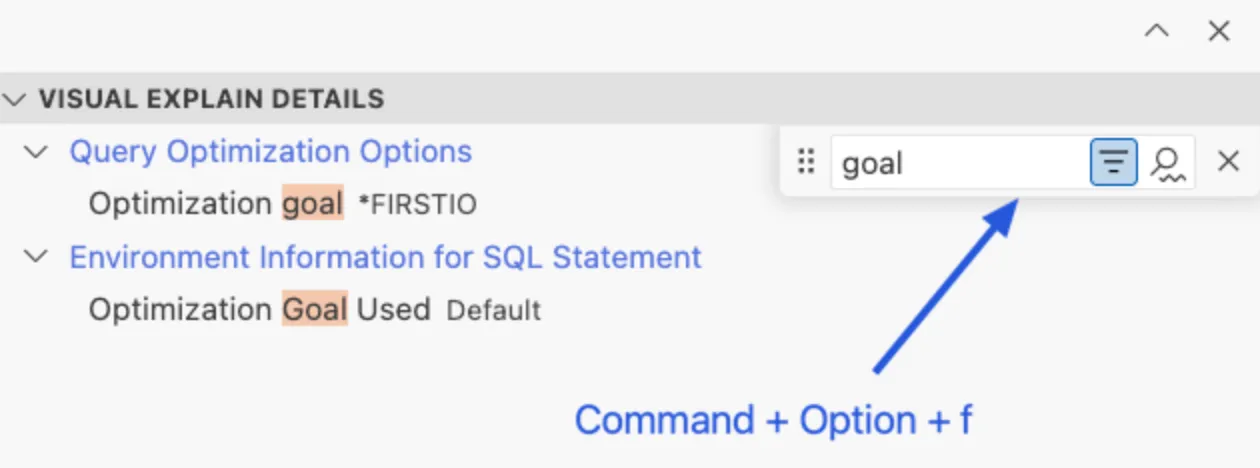
Use the Command+Option+f key sequence to cause the VE search bar to magically appear.
Type in goal to find all occurrences of “goal” within the VE detail. The SQL optimization goal is one of many interesting tidbits to be found within VE detail.
Please remember that SQE is a cost-based optimizer. It looks at all available options and statistics, and make the best choice for query implementation. In this situation, a table scan was used, probably because there are only 42 rows in this sample database table.
Use the nifty Command+Option+f search facility and search on ‘index’. As shown in the image, you see the indexes that SQE considered using.
Return to the SQL query and execute the query, using ‘Run and explain statement’. Note that VE shows the same approach (Table Scan) for the implementation of the query. Why wasn’t the index used?
3. Configuring node highlighting
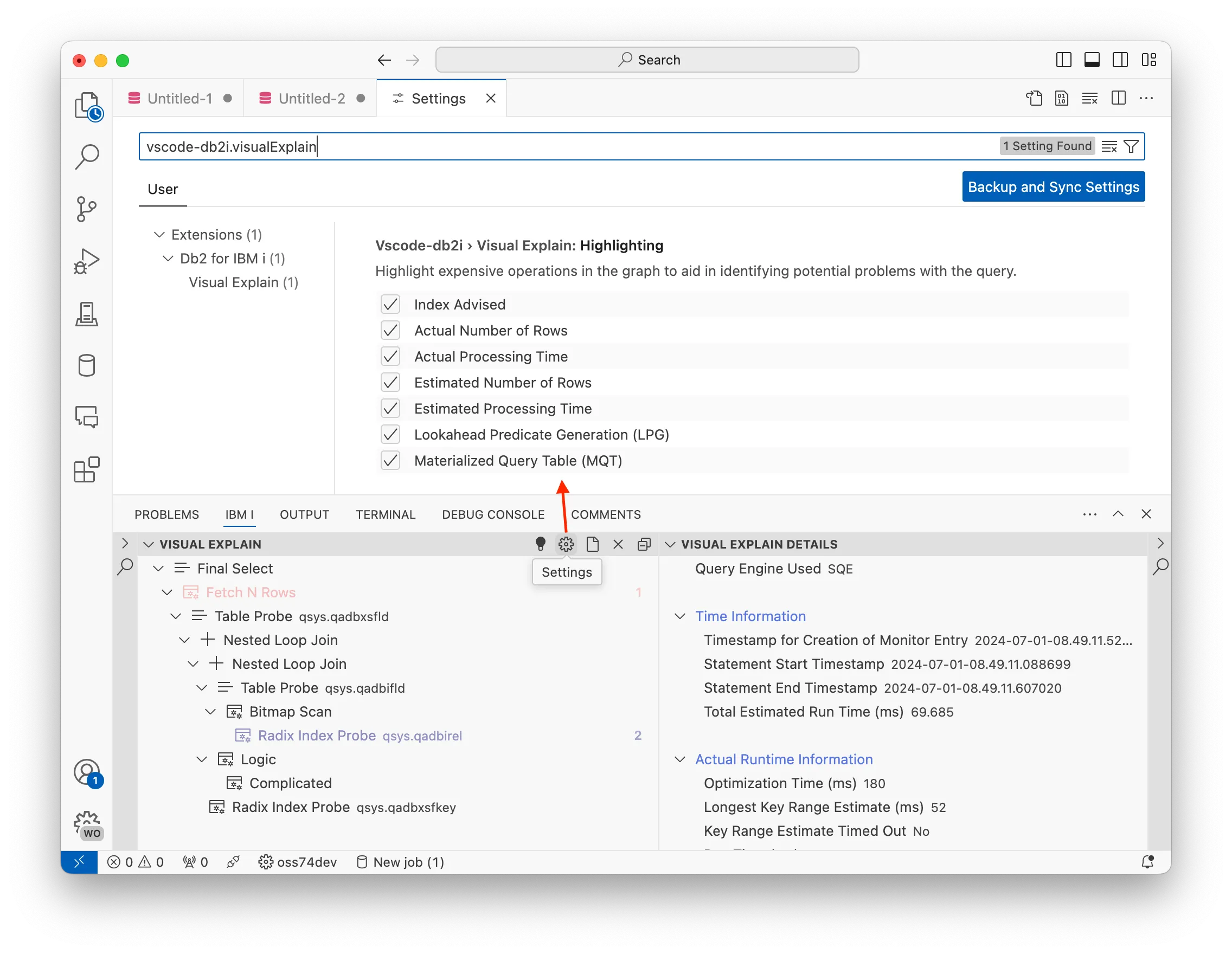
When viewing the Explain results, some rows are highlighted. These indicate nodes are highlighted since they are of significance in the Explain data.
As mentioned in the part before, all nodes can be hover on for more detail. When hovering on the highlighted nodes, the 🔥 (fire) emoji will be used to signal why the node is highlighted.
It is possible to configure which nodes will be highlighted in the Explain results. As depicted in the screenshot below, click the ⚙️ (cog/settings) in the Visual Explain view. This will open a new tab with settings, where options can be toggled which controls which nodes will be highlighted.
SELF
Intro
SQL Error Logging Facility (SELF) offers a comprehensive view that can help users understand specific SQL errors or warnings. The SELF view can be accessed through the IBM i panel next to the Results View. Additional documentation of SELF can be found here.
Tasks
1. Enable SELF for jobs
SELF can be turned on at a job level or a system level. In this workshop we are only going to cover turning on SELF at the job level.
There are four modes to capture errors with:
Mode
Info
*NONE
Capture no errors
*WARNING
Capture any errors where the SQLCODE is above 0
*ERROR
Capture any errors where the SQLCODE is below 0
*ALL
Capture both warnings and errors, SQLCODE != 0
Turn on SELF for an SQL job
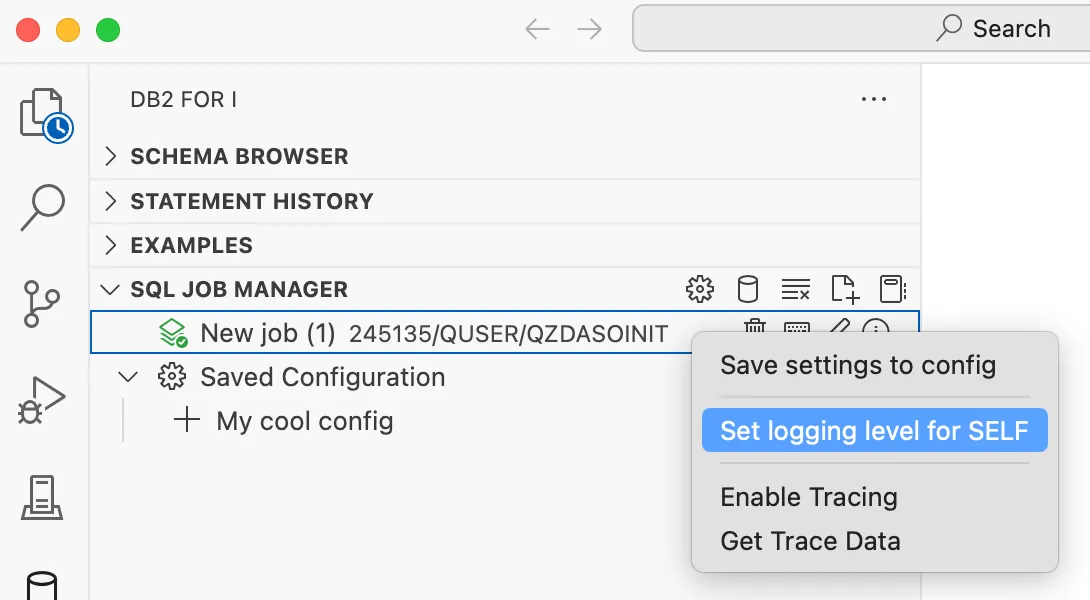
You can right click on any SQL job that has been created inside of the SQL Job Manager, and set the logging level. This will show a quick pick where you can select the mode.
The job will then start to capture errors and warnings.
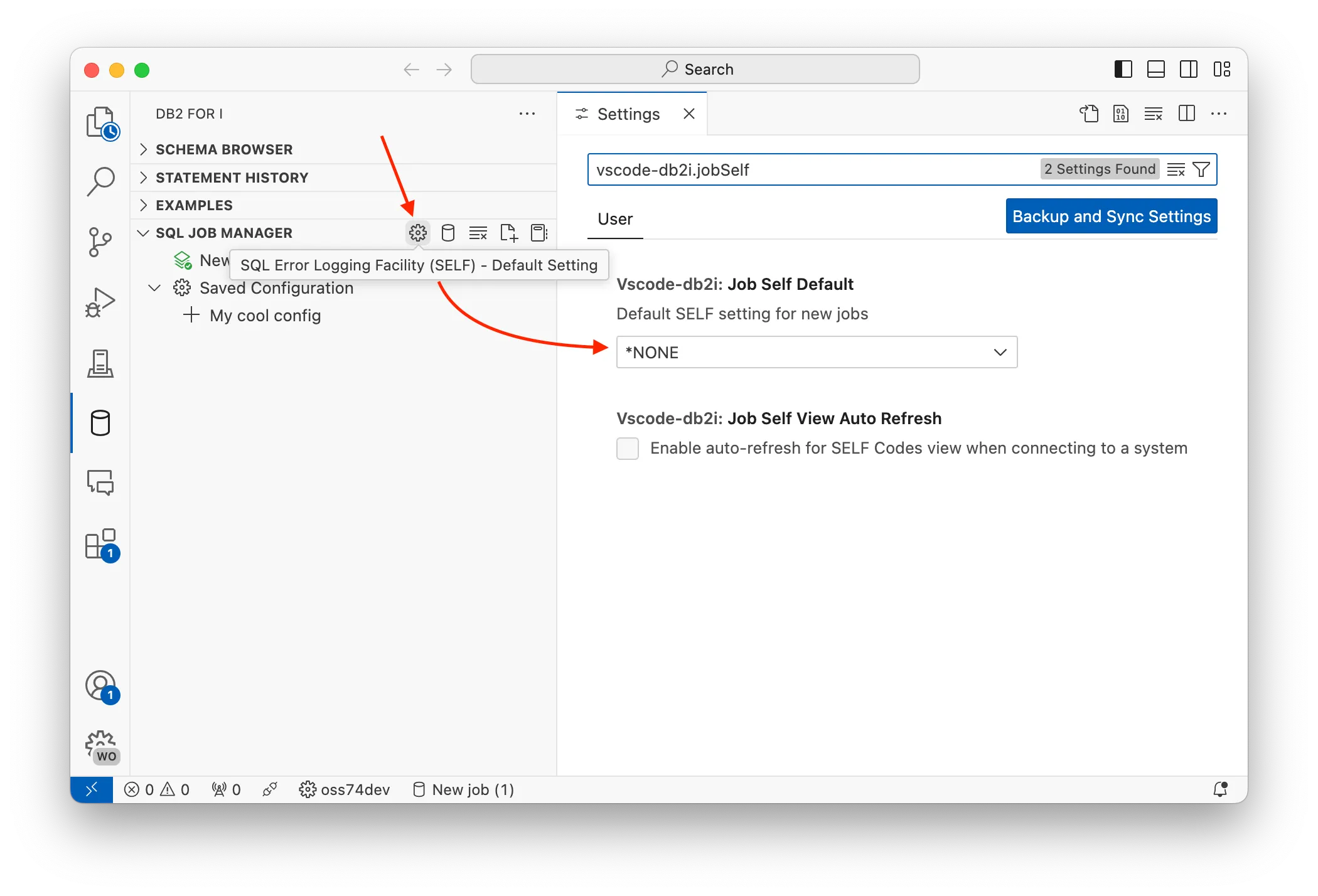
Turn on SELF for all new jobs
You can also ensure that any new job started by the SQL Job Manager has SELF already enabled. Click the ⚙️ (cog/settings) icon in the SQL Job Manager view. This will open the VS Code settings tab showing the SELF configuration options. You can then set the default logging mode.
2. Using the error view
The SELF view can be found next to the result set view. It is collapsed by default, and clicking on it can be expanded.
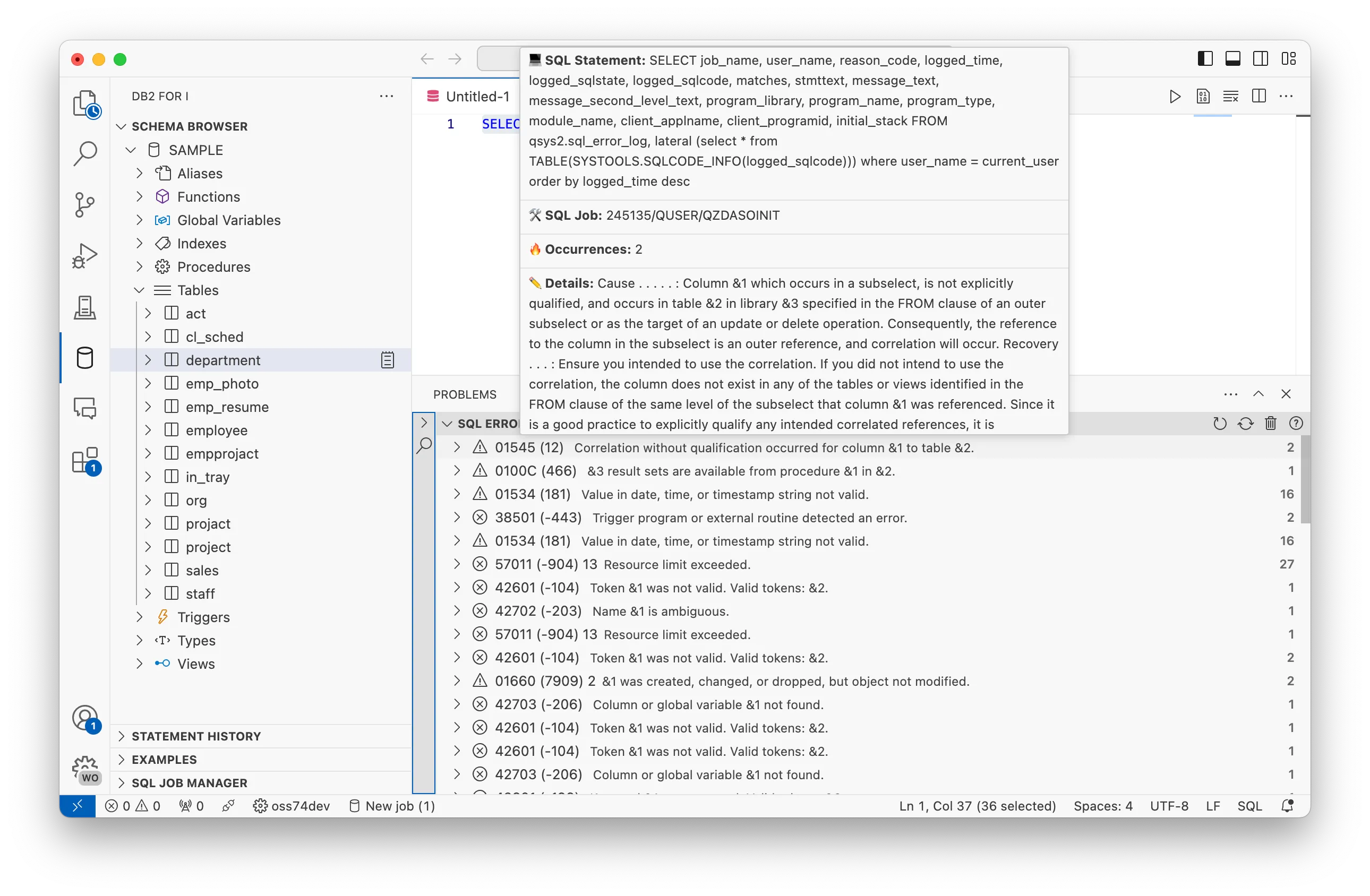
Each item in the SELF view is for a specific SQLCODE which is displayed in parenthesis. The SQLCODE tracks the actual error or warning triggered by a given SQL statement.
An error SQLCODE must be preceded by a single minus sign (-).
A warning SQLCODE can be preceded by an optional plus sign (+).
When an item is expanded or hovered over, information about the SQLCODE is displayed such as the Job Name, Call Stack, Additional Details, and the SQL statement. The counter on the right of each item denotes the number of occurrences (🔥) of the specific SQLCODE. Once the number of occurrences for a given code is greater than 100, we display 💯.
3. Help for SQL warnings and errors in procedures
In this section we’ll discover how SELF can help identify and isolate SQL coding issues. The SQL standard dictates when a code issue is designated as an SQL warning or SQL error. In either situation, it’s well worth your time to see what SELF is capturing and decide how to remediate the code.
As you move through the following 6 examples, start by creating the example procedure in your schema. Then, use the SQL CALL statement to call the procedure. Finally, take a close look at the SELF detail and try to ascertain why the SQL warning or error occurred, and what you’d do to fix the issue.
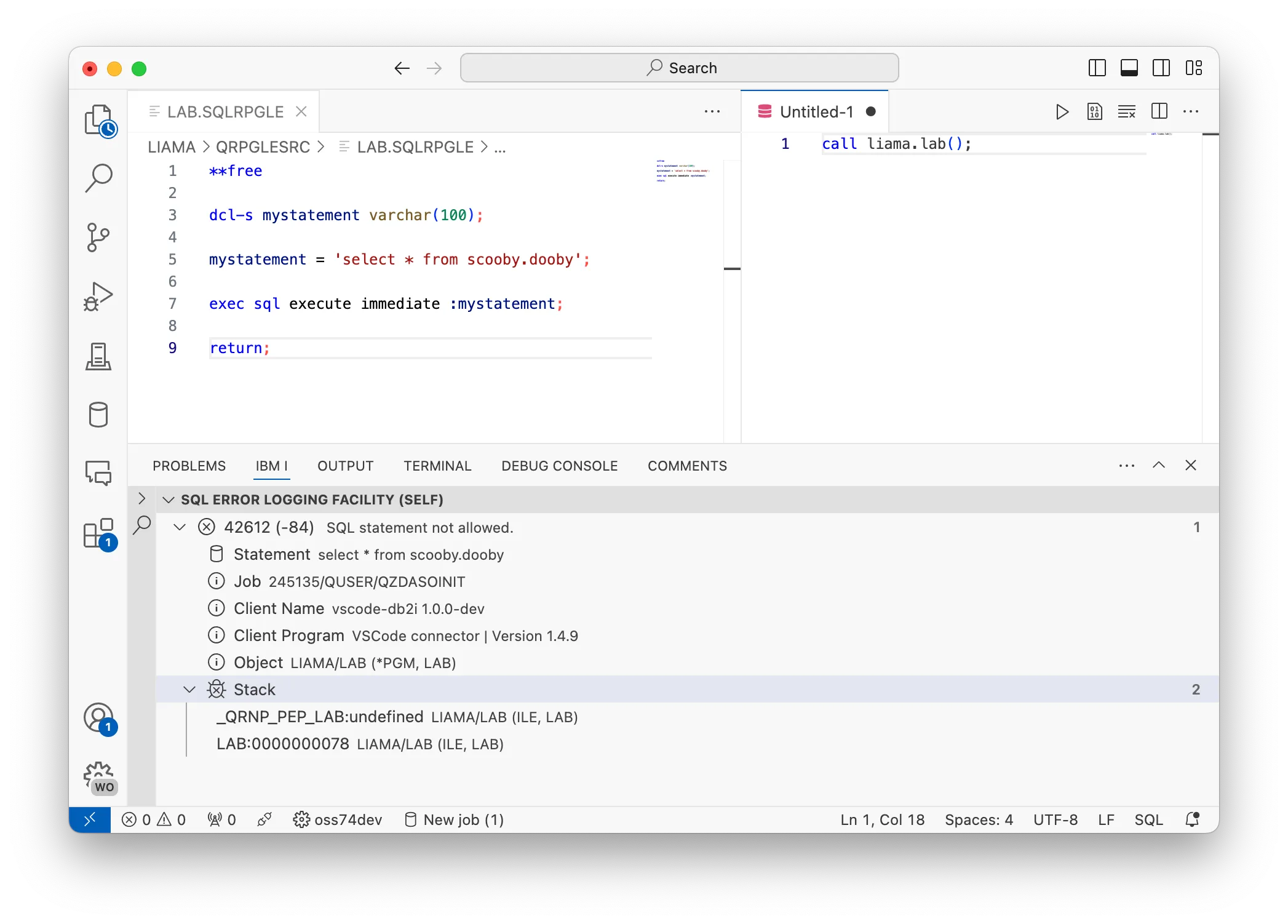
This part will demonstrate how to capture errors from ILE programs that utilize embedded SQL.
Create a new member in a source file, or create a stream file in the IFS, and give it the attribute/extension .sqlrpgle. Fill the member with the following content, and then compile it using the Create SQL RPGLE program Action (CRTSQLRPGI command).
**free
dcl-smystatement varchar(100);
mystatement ='select * from scooby.dooby';
exec sqlexecuteimmediate:mystatement;
return;
Then, SQL can be used to call the program as if it were a procedure.
This is only recommended for the purposes of this workshop: call yourlib.thesqlpgm().
5. Using SELF outside of VS Code
The SELF view will show any errors captured by the same user that is connected inside of Visual Studio Code. You can use the SQL statement to set the SELF mode in any job where SQL can be run. Then, when logs occur in those jobs, they will appear in the SELF view.
SETSYSIBMADM.SELFCODES='*ALL';
Notebooks
Intro
Notebooks are documents that contain a mix of rich Markdown, executable code snippets, and accompanying rich output. These are all separated into distinct cells and can be interleaved in any order. They are great storytelling devices, allowing you to interleave Markdown elements like images, math equations, and explanatory text with your code. Notebooks can be a perfect way to share and explain your ideas with coworkers or the public community.
Notebooks support executing SQL statements and rendering tables, CL results, and charts from Db2 for IBM i data directly in cell results.
You can use the ‘New Notebook’ button on the SQL Job Manager
You can find ‘IBMi i: New Notebook’ in the command palette.
Open a .inb file (which stands for ‘i Notebook’)
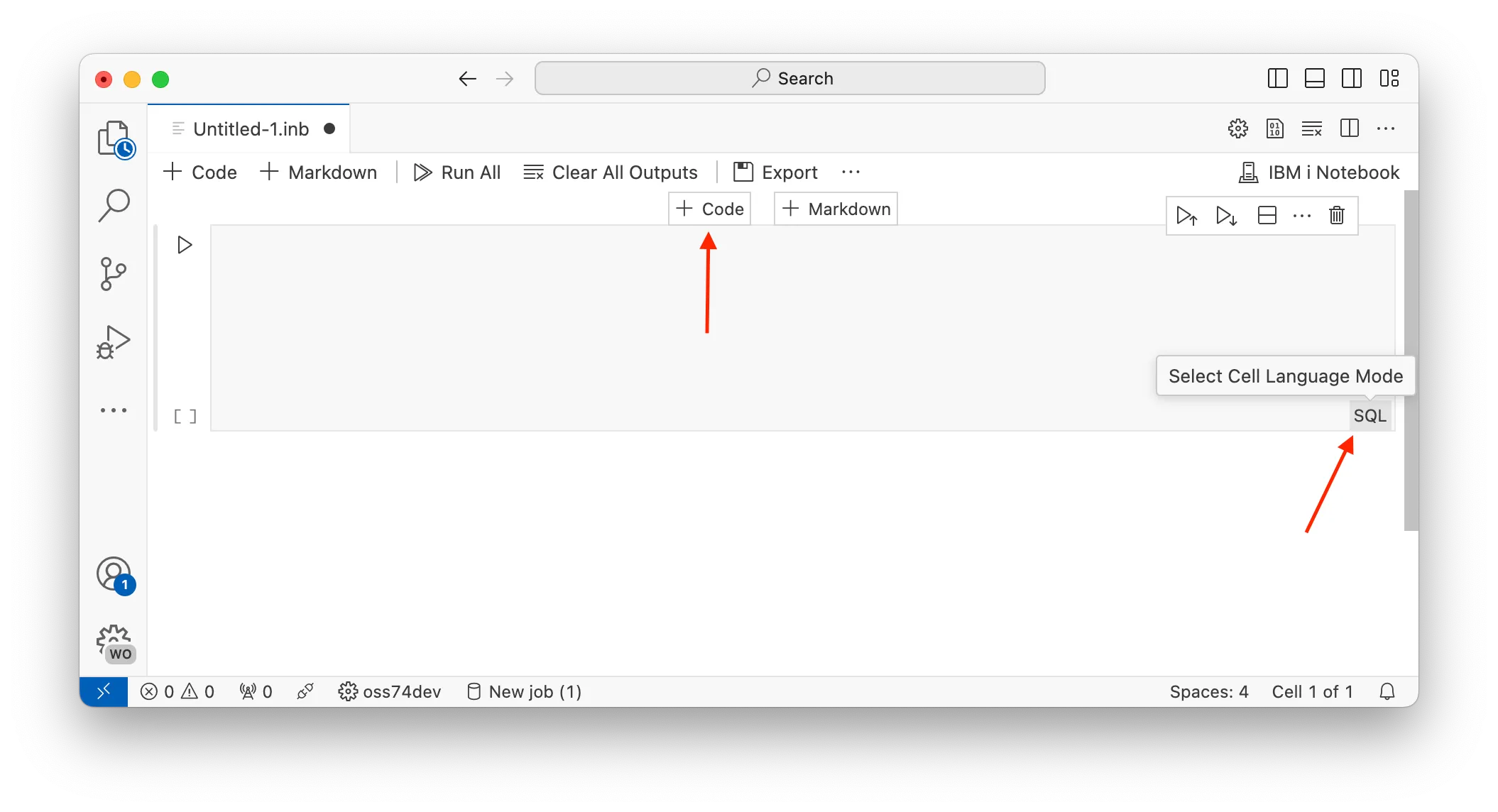
Above and below all cells will be two buttons to either:
Add a code cell, or
Add a markdown cell.
Each cell has a language associated with it, which determines how the cell will be executed.
2. Executing a cell
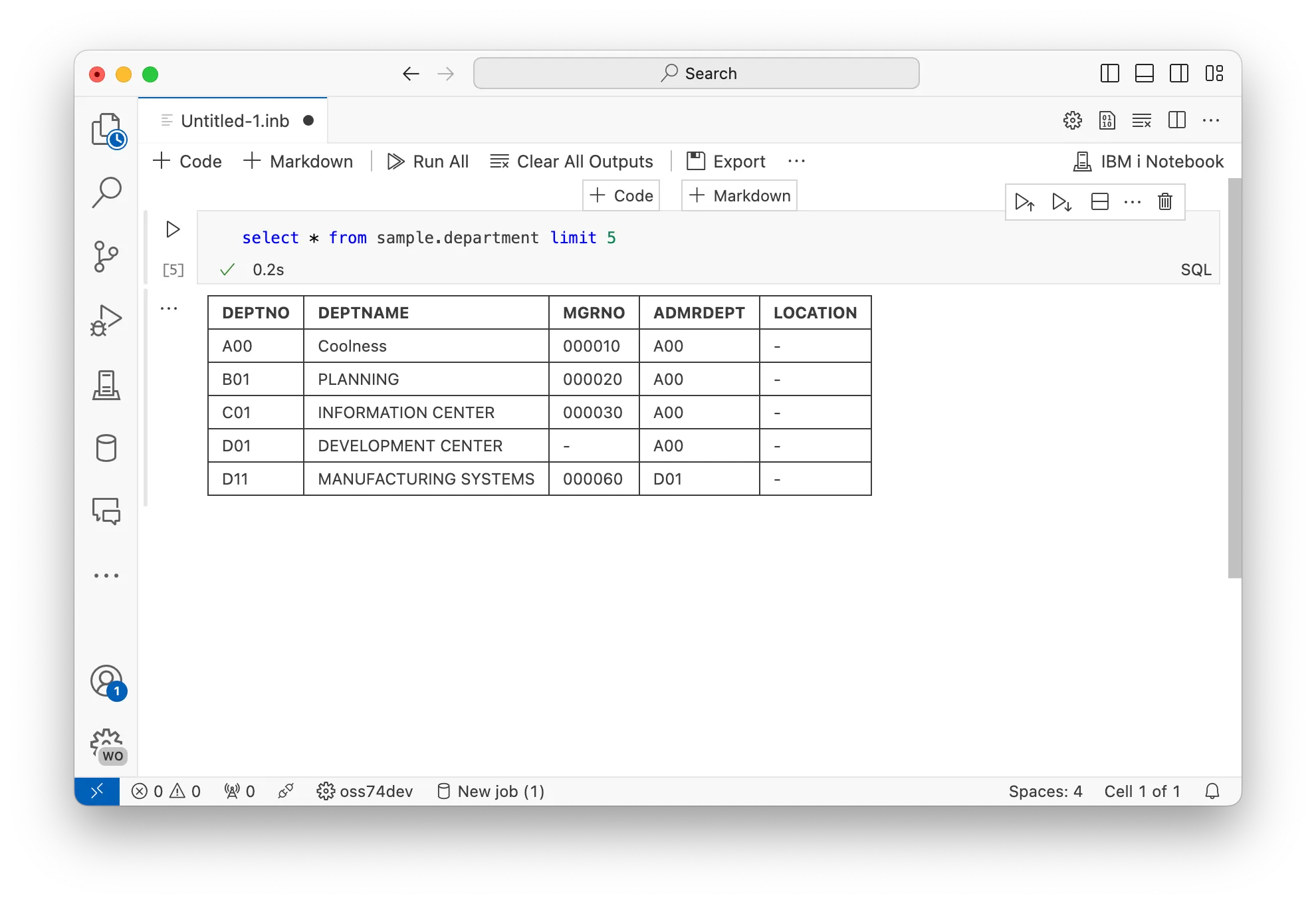
Based on the language tag in the cell determines how the cell will be executed and result will be rendered. By default, when using SQL, a table will be produced. Other types include CL and markdown.
On each cell is a ▶️ (play) button which will execute the cell, or you can use the keyboard shortcut Control+Enter. SQL statements will get executed in the selected job inside of the SQL Job Manager.
Multiple cells of different languages can be combined to build a notebook. This shows a notebook built with markdown and CL cells.
3. Saving and sharing Notebooks
When working with Notebooks inside of VS Code, they can be saved like regular files. IBM i specific Notebooks use the .inb extension as an indicator it’s used against IBM i and so VS Code knows how to open and execute it correctly.
You can use File→Save or File→Save As to save the Notebook onto your local device. Everything in the Notebook gets saved - including the result set - so when you or someone else opens the Notebook again, the previously run results will be there until overwritten. The cells can be run again and the prior results replaced.
4. Charting with Notebooks
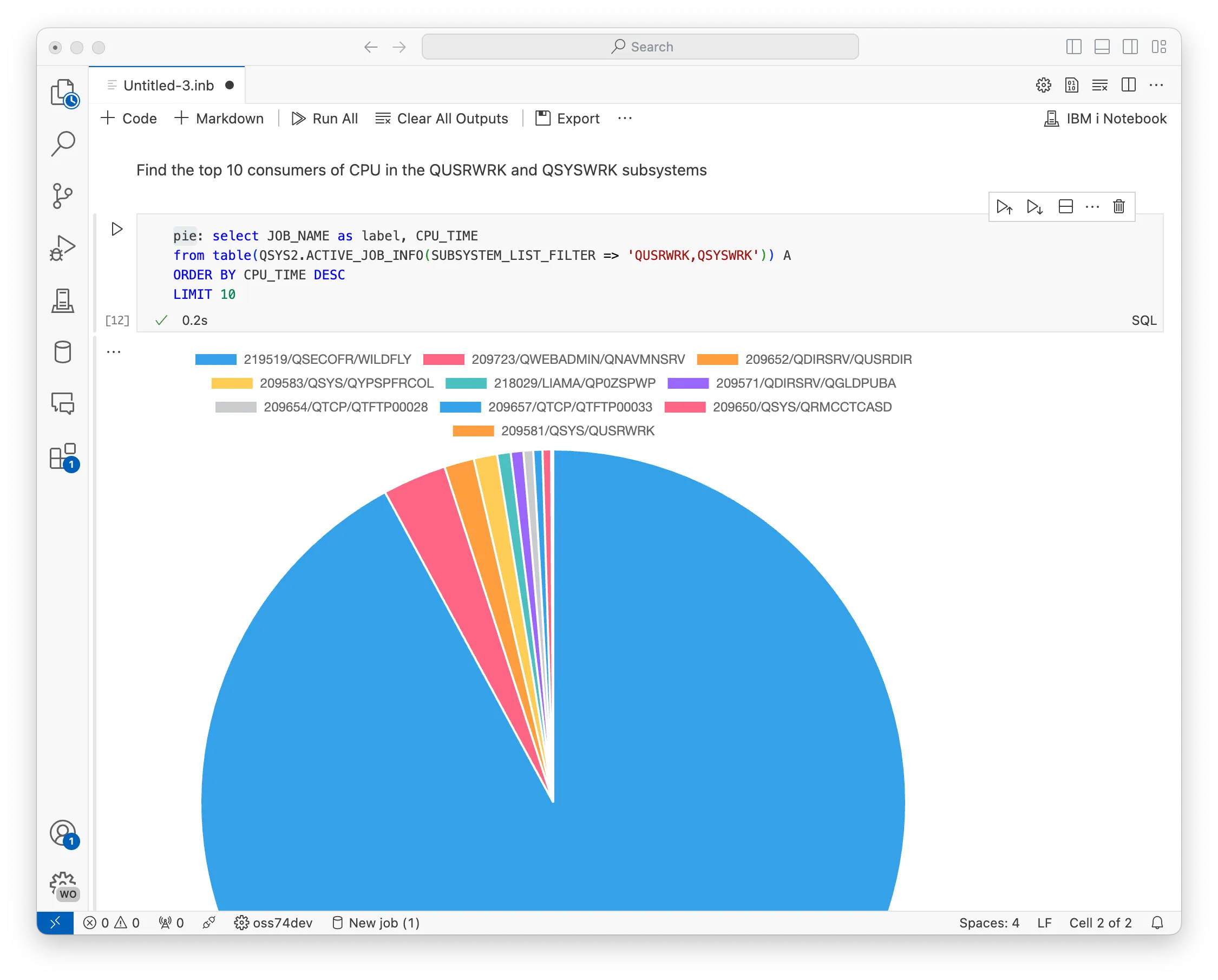
In a prior section, we had shown new prefixes like json, csv, etc. When using Notebooks, there are additional prefixes will allow for charts to be generated inside of a Notebook from Db2 for IBM i result sets.
Add a new SQL cell in a Notebook
Write the statement provided into the cell
See the prefix used here (pie). This is the chart type.
Execute the cell and see the chart
pie: select JOB_NAME as label, CPU_TIME
fromtable(QSYS2.ACTIVE_JOB_INFO(
SUBSYSTEM_LIST_FILTER =>'QUSRWRK,QSYSWRK'
)) A
ORDER BY CPU_TIME DESC
LIMIT10
5. Chart datapoints
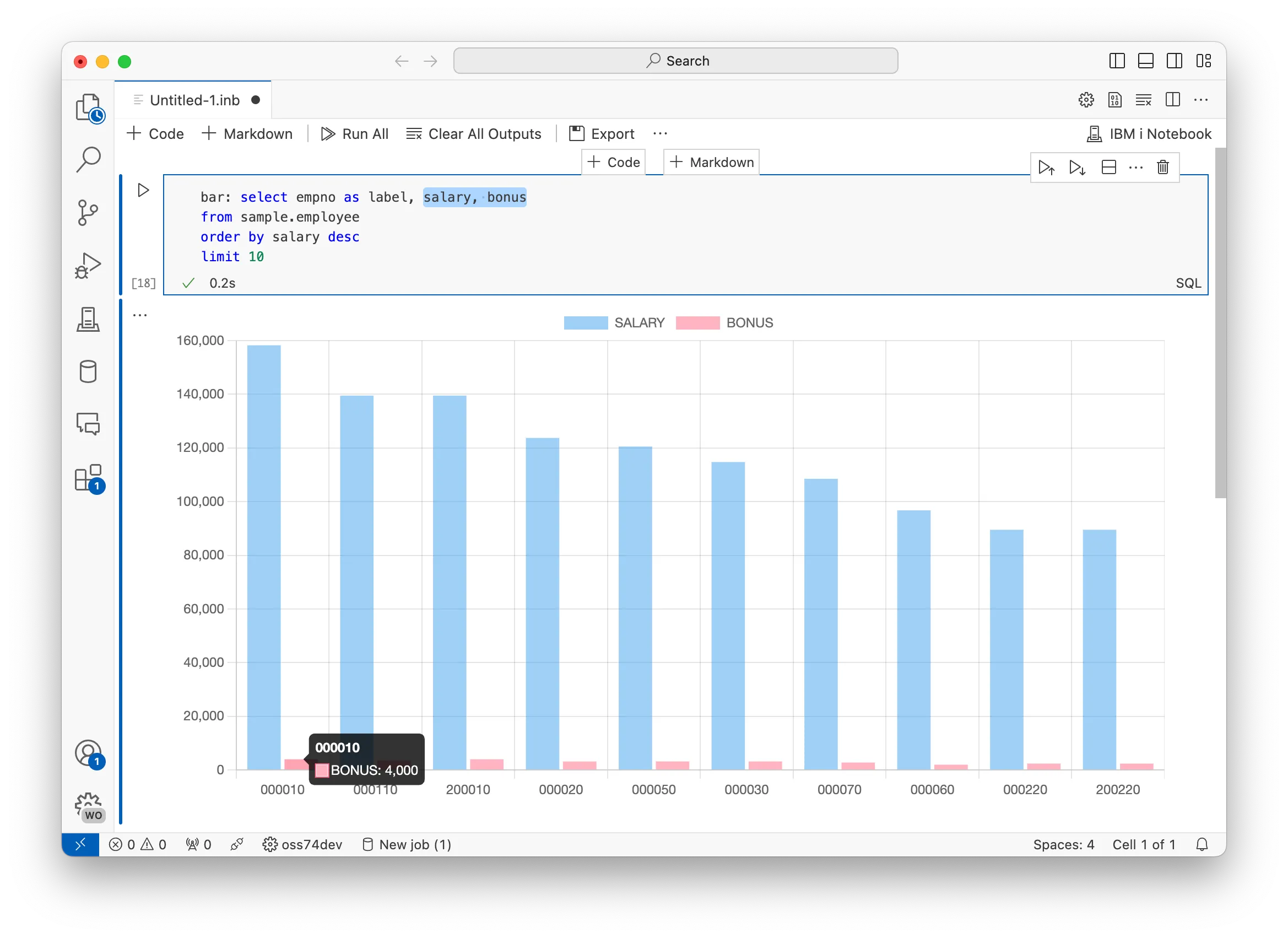
If multiple numeric columns are returned in the result set, then they will be plotted as multiple data points in the resulting chart.
bar: select empno as label, salary, bonus
fromsample.employee
order by salary
desclimit10
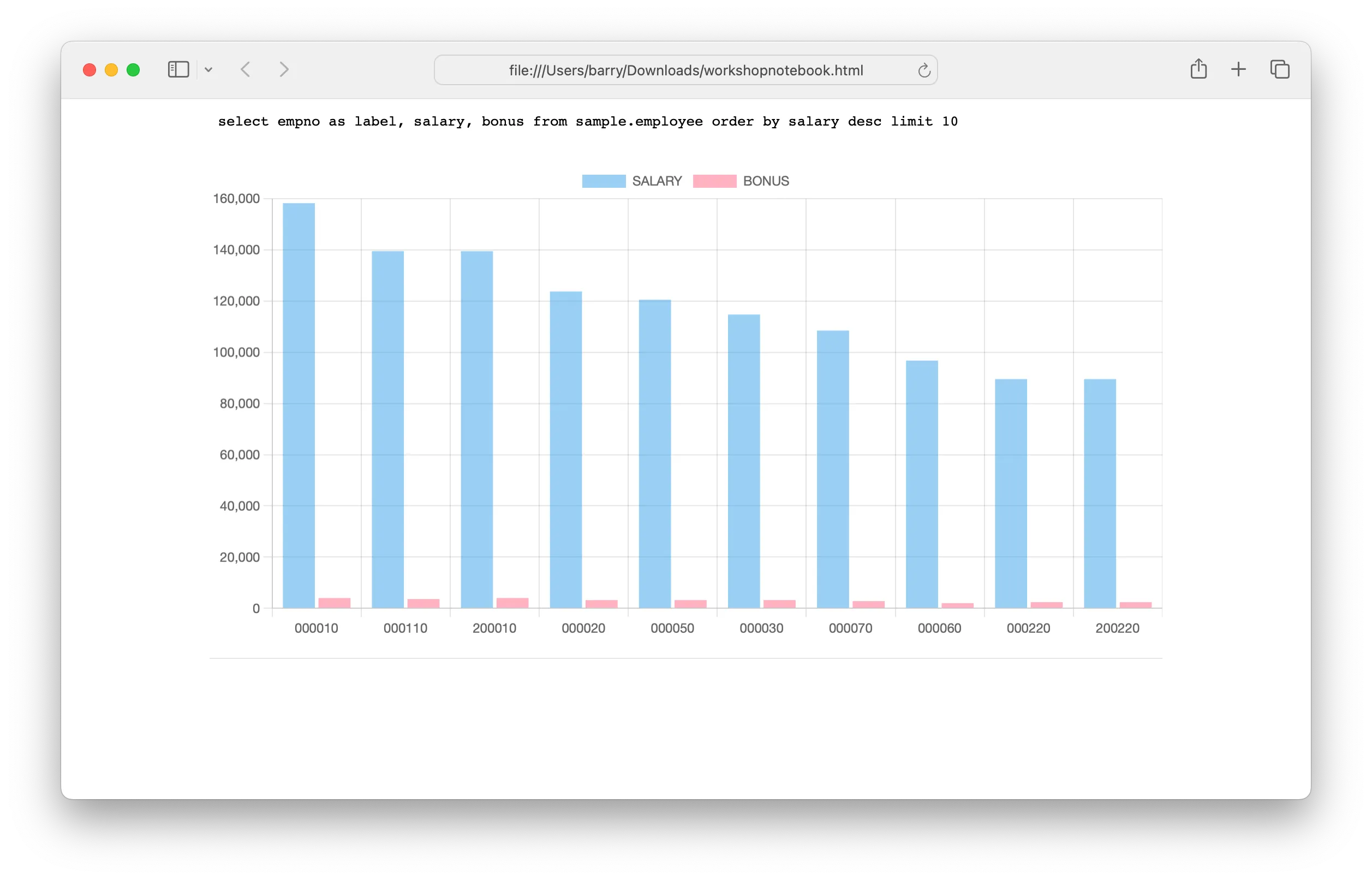
6. Exporting Notebooks
Using the Export button at the top of each Notebook document allows the user to save contents into a static HTML file. This file can be shared, published, or exported as PDF from most browsers.
7. Opening Notebooks from SQL files
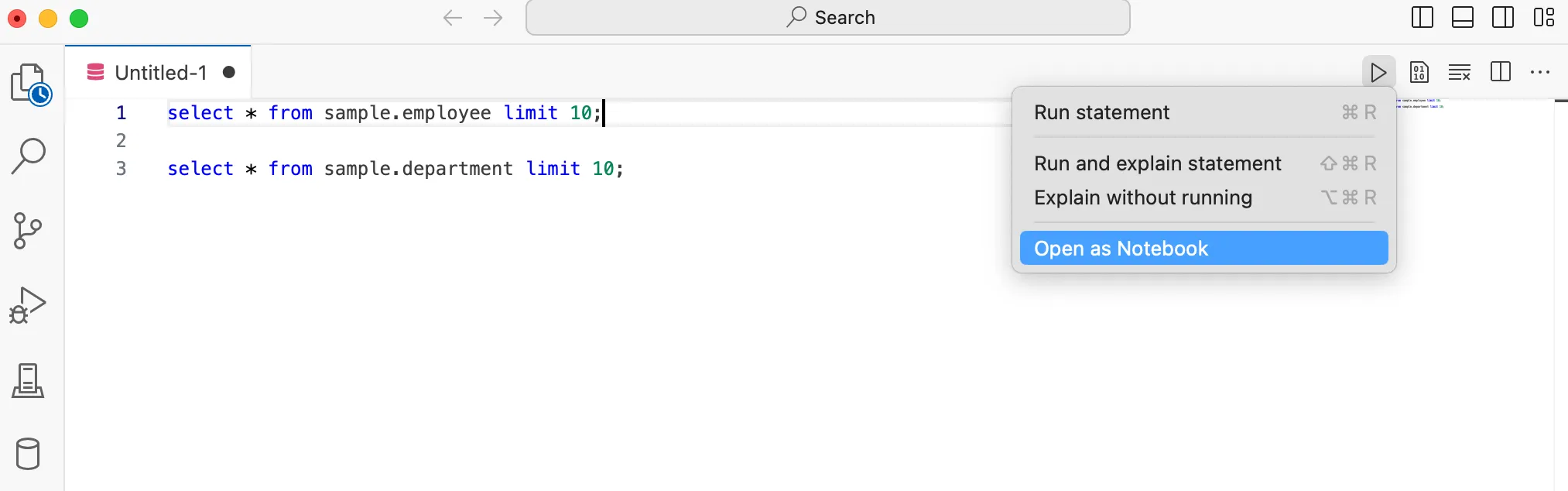
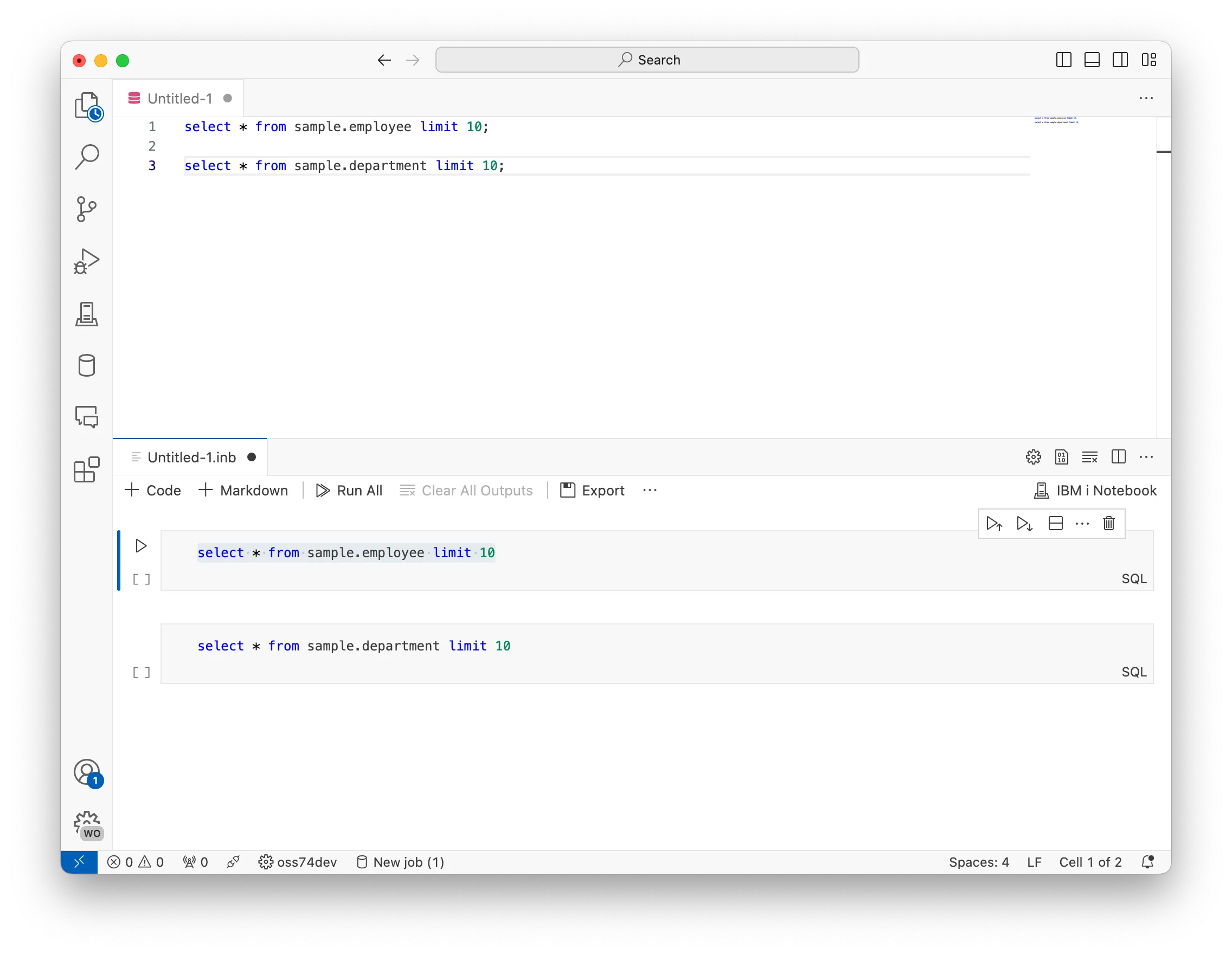
Any SQL document can be converted to a new Notebook. Each SQL statement in the document will become a unique SQL cell.
Under the ▶️ (play) button is ‘Open as Notebook’. Selecting that will open the Notebook in a new tab.
Updatable result sets
Intro
The Db2 for IBM i extension has the ability to update result sets directly in the result set view. This is a powerful feature that allows users to quickly update data without having to write SQL statements.
To accomplish this, use the update prefix in the SQL statement. This will allow the user to update the result set directly in the result set view. A fully qualified object name is required.
Tasks
update: select*fromsample.employee
update: select*fromsample.department
After the statement has been executed, you will see the result set in the result set view. You can then click on the cell you want to update and change the value. Once the value has been changed, you can press the Enter key to save the changes.
Challenge: Write an SQL procedure
With all the new tools you’ve got, it’s time to write an SQL procedure. The procedure should take a department ID (char(3)) as input and return all employees in that department.
-- SQL statement to fetch employees by WORKDEPT
select*fromSNDBX3.EMPLOYEEwhere WORKDEPT ='A00';
-- SQL Procedure to fetch employees by WORKDEPT
call GetEmployeesByWorkDept('A00');
Click to see the solution
Nice try! Ask your instructor for help if you need it.
-- SQL Procedure to fetch employees by WORKDEPT
CREATEORREPLACEPROCEDURE GetEmployeesByWorkDept (
IN dept CHAR(3)
)
LANGUAGESQL
DYNAMIC RESULT SETS1
BEGIN
-- Select employees based on the given WORKDEPT
DECLARE SELECT_STATEMENT CURSORFOR
SELECT EMPNO, FIRSTNME, LASTNAME, JOB, SALARY
FROMSNDBX3.EMPLOYEE
WHERE WORKDEPT = dept;
-- Open the cursor to return the result set
OPEN SELECT_STATEMENT;
SET RESULT SETSCURSOR SELECT_STATEMENT;
END;
call GetEmployeesByWorkDept('A00');
Challenge: Write an SQL function
With all the new tools you’ve got, it’s time to write an SQL function. The function should take a department ID (char(3)) as input and return the total salary of all employees in that department.
values GetTotalSalaryByWorkDept('A00');
Click to see the solution
Nice try! Ask your instructor for help if you need it.
-- SQL Function to calculate the sum of salaries for a given WORKDEPT
CREATE OR REPLACEFUNCTIONGetTotalSalaryByWorkDept (
dept CHAR(3)
)
RETURNSDECIMAL(10, 2)
LANGUAGESQL
DETERMINISTIC
BEGIN
DECLARE total_salary DECIMAL(10, 2);
-- Calculate the sum of salaries for the given WORKDEPT